
You know that feeling. You hit the power button, wait, and wait some more, and by the time your desktop actually loads you’ve already made coffee, checked your phone twice, and started wondering if it’s finally time to buy a new machine. Before you swipe that card, take a breath. Most slow computers aren’t dying, they’re just drowning in years of clutter, bad habits, and settings nobody ever bothered to check.
I’ve fixed more so called dead laptops than I can count, and the truth is maybe one in ten actually needed replacing. The rest just needed some attention. So let’s walk through this properly, step by step, the same way I’d do it if your laptop was sitting in front of me right now. Grab a coffee, this is going to be thorough.
Why Computers Slow Down in the First Place
Before jumping into fixes, it helps to understand what’s actually happening under the hood. A computer doesn’t slow down because it gets old the way a person does. It slows down because of specific, identifiable reasons, and almost every single one of them can be reversed.
The main culprits are usually a combination of too many background programs competing for limited resources, a storage drive that’s nearly full, accumulated temporary files and junk data, outdated software running inefficient code, malware or unwanted programs silently consuming resources, insufficient memory for your current usage habits, an aging mechanical hard drive that simply cannot keep up with modern demands, and overheating caused by dust buildup that forces your processor to throttle itself down.
Once you understand that these are the real causes, the fixes stop feeling like guesswork and start feeling like a checklist. Let’s go through each one.
Start With What’s Actually Running
Open your Task Manager on Windows by right clicking the taskbar and selecting it, or simply pressing Ctrl, Shift, and Escape together. On a Mac, search for Activity Monitor using Spotlight. Look at what’s eating your CPU and memory. You will probably be shocked. Half the programs running in the background are things you opened once, months ago, and forgot about entirely.
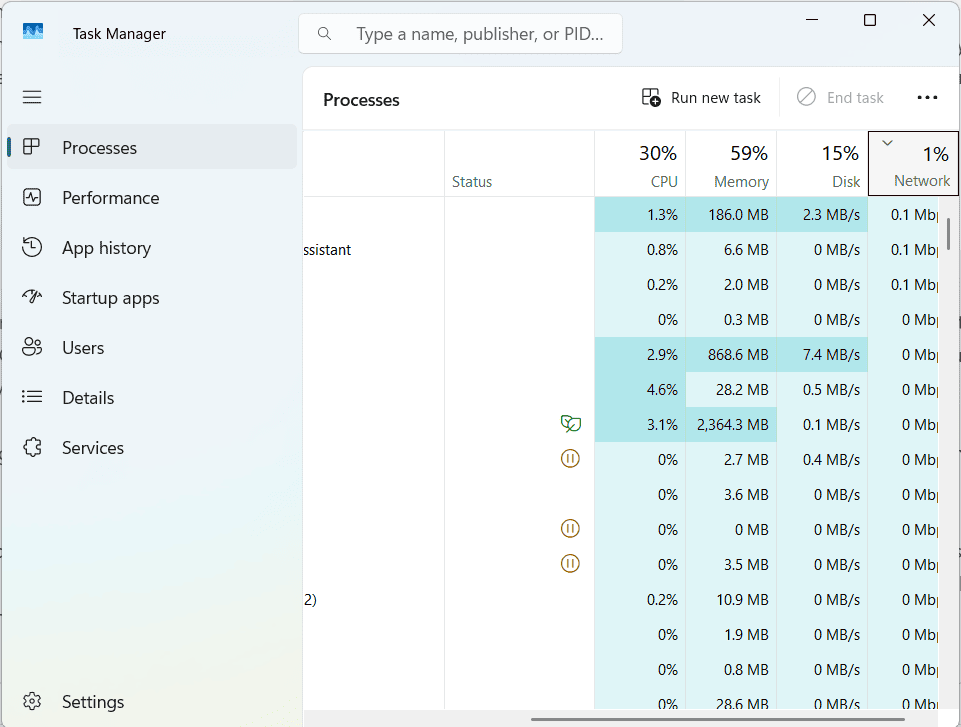
Sort the list by CPU usage first, then by memory usage, and take note of anything that seems disproportionately hungry for a program you rarely use. Close anything you don’t recognize or don’t need open right now.
Browser tabs count too, and honestly deserve their own mention. If you’re the type who keeps thirty or forty tabs open because you might need them later, that’s a significant chunk of your slowdown right there. Each tab reserves memory even when you’re not actively looking at it, and some websites are especially heavy with ads, trackers, and auto playing content that keeps chewing through resources in the background.
A good habit going forward is to bookmark pages you want to revisit instead of leaving them open indefinitely. Your computer will thank you.
Deal With Startup Programs
Here’s something most people never think about. Every time you install a new app, there’s a decent chance it quietly adds itself to your startup list without asking permission in any obvious way. Over the years, this list grows and grows until your computer is trying to launch fifteen or twenty different programs the second you turn it on, and that’s before you’ve even opened a browser or checked your email.
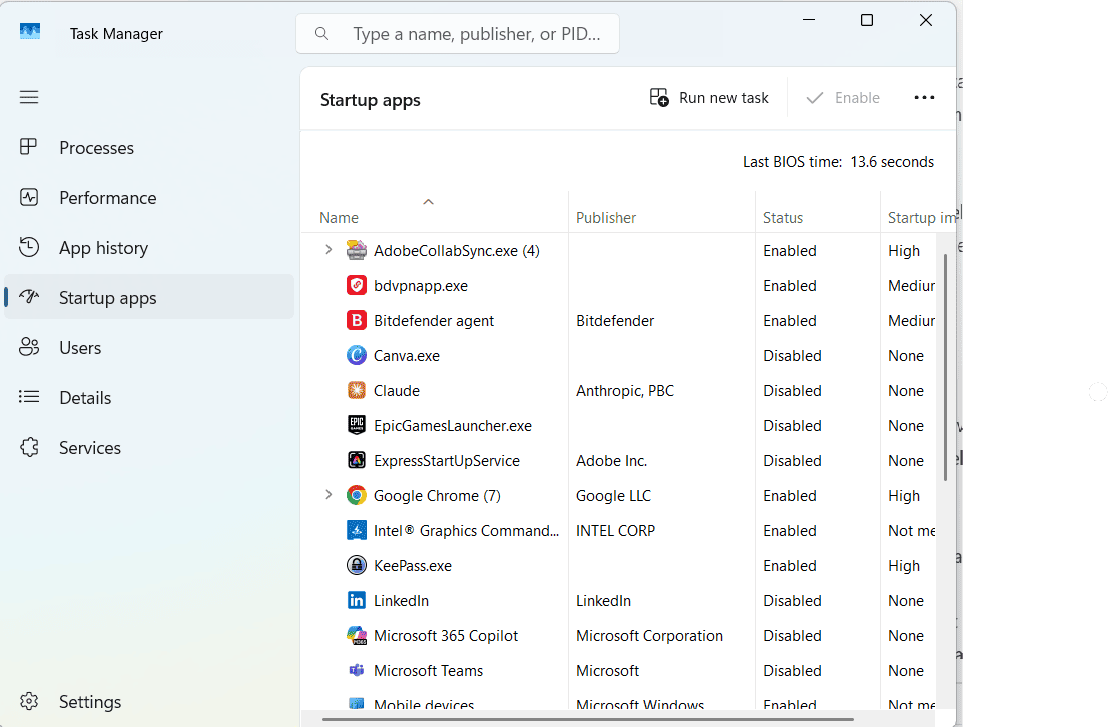
On Windows, go into Task Manager and click the Startup tab. You’ll see everything set to launch automatically, along with a helpful rating of how much of an impact each one has on your boot time. Disable anything that isn’t essential. Your antivirus, sure, keep that running. That random helper tool for a printer you don’t even own anymore, or a PDF reader plugin that installed itself without asking, turn those off without hesitation.
On a Mac, head to System Settings, then General, then Login Items. Same idea, just a different menu to navigate. Go through the list carefully and disable anything you don’t recognize or don’t actually need running the moment you log in.
This single fix alone can shave a significant amount of time off your boot process, sometimes cutting startup time in half.
Clear Out the Digital Junk Drawer
Computers accumulate junk the same way a garage does over the years. Temporary files, old downloads, cached data from apps you deleted a long time ago, duplicate photos, half finished projects you forgot about, installer files sitting around after the software has already been installed. All of it takes up valuable space, and when your storage drive gets too full, your entire system slows down trying to manage what little free space remains.
On Windows, search for Disk Cleanup in the start menu and run it. It will scan your drive and show you exactly what’s safe to delete, broken down into categories like temporary files, system files from old updates, and recycle bin contents. You’d genuinely be amazed how many gigabytes of pure nothing get freed up in just a few minutes.
On a Mac, go to the Apple menu, then About This Mac, then Storage, and click Manage. It breaks everything down by category so you can see exactly where your space is actually going, whether that’s applications, documents, photos, or system data.
While you’re in cleanup mode, go through your Downloads folder specifically. I guarantee there’s something in there from two or three years ago that you completely forgot existed. Old installers, duplicate resumes, screenshots you never deleted, random files people sent you once and never mattered again.
Aim to keep at least fifteen to twenty percent of your total storage free at all times. When a drive gets too close to full, performance takes a real hit across the board, not just when you’re saving new files.
Check for Malware and Unwanted Software
Sometimes a slow computer isn’t about clutter at all, it’s about something running quietly in the background that shouldn’t be there in the first place. Adware, sketchy browser toolbars, and low grade malware are notorious for silently consuming your system resources while you have absolutely no idea they’re even installed on your machine.
Run a full, thorough scan with whatever antivirus software you trust. Windows actually comes with a solid built in option called Windows Security, and it does a genuinely decent job on its own without needing anything extra. If you want additional peace of mind, a dedicated malware scanner can catch things a regular antivirus program might occasionally miss, since different tools use different detection methods.
Also take a careful look through your installed programs list, found in Settings under Apps on Windows or in your Applications folder on a Mac. If you see anything you don’t remember installing, or anything with a name that sounds vaguely spammy or unfamiliar, get rid of it immediately. Pay close attention to browser toolbars and extensions too, since these are a favorite hiding spot for unwanted software.
Update Everything
I know, updates feel like an annoyance that always pops up at the worst possible time, usually right when you’re in the middle of something important. But outdated software is a surprisingly common cause of sluggish performance, and it’s also a real security risk that shouldn’t be ignored.
Developers regularly release updates that fix bugs, patch security vulnerabilities, and improve overall efficiency behind the scenes. An outdated operating system, in particular, can run noticeably slower than a properly updated one, since performance improvements are often baked directly into these updates.
Check for operating system updates first, then move on to updating your web browser, and finally go through your other frequently used applications one by one. It only takes a few minutes total and it genuinely makes a measurable difference in how smoothly everything runs.
Give Your Browser Some Real Attention
For most people, the browser is where the majority of computer time actually gets spent, and it’s also one of the biggest hidden culprits behind a sluggish overall experience. Extensions in particular are sneaky. They seem harmless individually, small and lightweight, but string together a dozen of them and you’ve essentially built a second operating system running inside your browser, constantly consuming memory and processing power.
Go into your extensions list, usually found in your browser’s settings menu, and disable or completely remove anything you’re not actively using on a regular basis. Be honest with yourself here, most people have at least five extensions they installed once and never touched again.
While you’re there, clear your browsing cache and cookies. It sounds like a small thing, but a bloated cache can genuinely slow down page loading times and overall browser responsiveness, especially if you haven’t cleared it in months or years. Most browsers let you do this in just a few clicks through the settings or history menu.
It’s also worth considering whether you’re using a particularly heavy browser. Some browsers are simply more resource intensive than others, and switching to a lighter alternative can make a noticeable difference on older hardware.
Look Seriously Into Your Storage Drive
If your computer still has a traditional mechanical hard drive instead of a solid state drive, this might be the single biggest thing holding you back from a genuinely fast experience. Hard drives are mechanical, with physical spinning parts and a moving read head, and they are dramatically slower than solid state drives at reading and writing data.
Swapping an old hard drive for a solid state drive is genuinely one of the best upgrades you can possibly make to an aging computer. It’s not free, but it’s a small fraction of the cost of buying an entirely new computer, and the difference in speed is often nothing short of night and day. Boot times that used to take two full minutes can drop to under thirty seconds. Programs that used to hang and freeze open almost instantly.
Many local computer repair shops can perform this swap for you at a reasonable cost, transferring your existing files and operating system over in the process. There are also plenty of detailed guides available if you want to attempt the upgrade yourself, and for most desktop computers and many laptops, it’s a surprisingly manageable weekend project.
Consider Adding More Memory
If you tend to have a lot of programs or browser tabs open at the same time, and your computer is a few years old, it might simply not have enough memory installed to comfortably handle your current workload. Adding more RAM is usually a straightforward and relatively affordable upgrade on most desktop computers and many laptops, though it’s worth noting that some newer slim laptops have memory soldered directly onto the motherboard and cannot be upgraded after purchase.
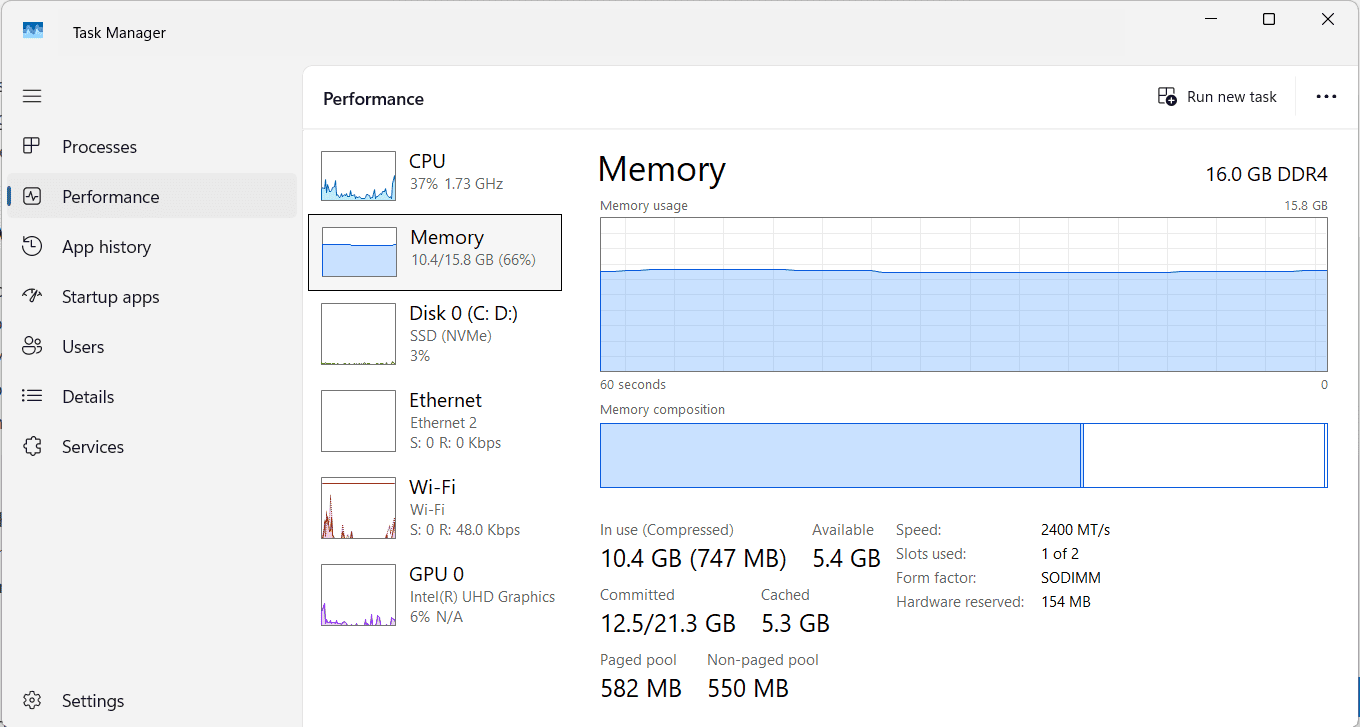
Check how much RAM your machine currently has installed and compare that figure to what a similar new computer typically ships with today. If you’re sitting well below that baseline, an upgrade could genuinely solve a large portion of your day to day frustration, particularly if you notice things slowing down specifically when you have multiple applications open at once.
Dust It Out Completely
This particular fix gets overlooked constantly, but it matters far more than most people realize. Dust builds up inside your computer over time, clogging fans and vents and blocking proper airflow. When that happens, your internal components run hotter than they should, and many modern processors automatically slow themselves down as a built in safety feature to avoid overheating and potential damage.
This means a genuinely dusty computer can feel sluggish even if nothing is technically broken or malfunctioning. It’s simply protecting itself by reducing performance.
If you’re comfortable opening up your desktop tower, a can of compressed air works absolute wonders on fans and vents, blowing out years of accumulated dust in just a few minutes. For laptops, be a bit more careful given the tighter internal spacing, but even blowing out the visible vents from the outside can help considerably. If your laptop has been running noticeably hot to the touch and the fan has been louder than usual lately, this simple fix alone might solve the entire problem.
Reset Instead of Replace
If you’ve worked through everything above and things are still crawling along slower than they should, consider doing a clean reinstall of your operating system. It sounds drastic on paper, but both Windows and Mac have built in tools that let you reset your system while keeping your personal files intact throughout the process.
This essentially wipes away years of accumulated software conflicts, registry clutter, and background bloat that can build up over time, giving you a computer that runs almost exactly like it did on the very first day you brought it home.
Just make sure to back up anything genuinely important beforehand as a precaution, and keep careful track of any software license keys you might need in order to reinstall paid programs afterward.
A Few Extra Habits Worth Building
Beyond the one time fixes above, a handful of ongoing habits can keep your computer running smoothly for years to come. Restart your computer regularly instead of leaving it in sleep mode indefinitely, since a full restart clears out temporary memory buildup that accumulates over time. Uninstall programs the moment you realize you no longer use them, rather than letting them sit there taking up space. Keep an eye on your storage levels every few months rather than waiting until you’re completely out of space. And try to avoid installing software from unfamiliar or untrustworthy sources, since this is one of the most common ways unwanted programs sneak onto a system in the first place.
A slow computer is frustrating, there’s no getting around that, but it’s rarely a genuine reason to spend hundreds or even thousands of dollars on a full replacement. Most of the time, the real fix is some combination of clearing out digital clutter, taming an overgrown list of startup programs, scanning thoroughly for hidden malware, and maybe a modest hardware upgrade like a solid state drive or some additional memory.
Work through these steps in order, take your time with each one, and there’s a genuinely good chance your old, supposedly dying computer will feel practically brand new again by the time you’re finished. Your wallet, and your patience, will both thank you for it.