
Power BI paginated reports are commonly used when you need pixel-perfect, print-ready reports with complete control over layout and formatting. They are especially useful in enterprise reporting scenarios where consistency and structure matter more than interactive visuals. One of the key features in paginated reports is the use of subreports, which allows you to embed detailed sections inside a main report and pass parameters dynamically based on the parent dataset.
While working with subreports in Power BI Report Builder, things usually work smoothly when data is available. However, you might sometimes notice an unexpected behavior where a subreport is supposed to display information but it does not appear at all, even though everything looks correctly configured.
This article is based on a real scenario I came across while working with an employee performance report in Microsoft Report Builder. It touches on a common issue many people search for: why is my Power BI subreport not showing data, why does a paginated report hide a subreport, or how to handle missing data in Power BI Report Builder subreports. In this article, I’ll explain the scenario I encountered and the approach I used to fix it.
What I Was Trying to Build
I was working on a Monthly Employee Performance Report in Power BI Report Builder. The report consists of a main report and a subreport.
The main report contains a dataset that retrieves employee information, including Employee ID, Name, Department, and Location, from a Microsoft Fabric Lakehouse. I added a single-cell tablix to the report and grouped it by Employee ID so that one row is generated for each employee returned by the dataset.
Inside the tablix cell, I placed a subreport. The main report passes the Employee ID, Name, Department, and Location as parameters to the subreport.
The subreport displays the employee details along with a monthly performance trend column chart. To generate the chart, the subreport retrieves employee’s monthly performance scores from the Microsoft Fabric Lakehouse using its own separate table.
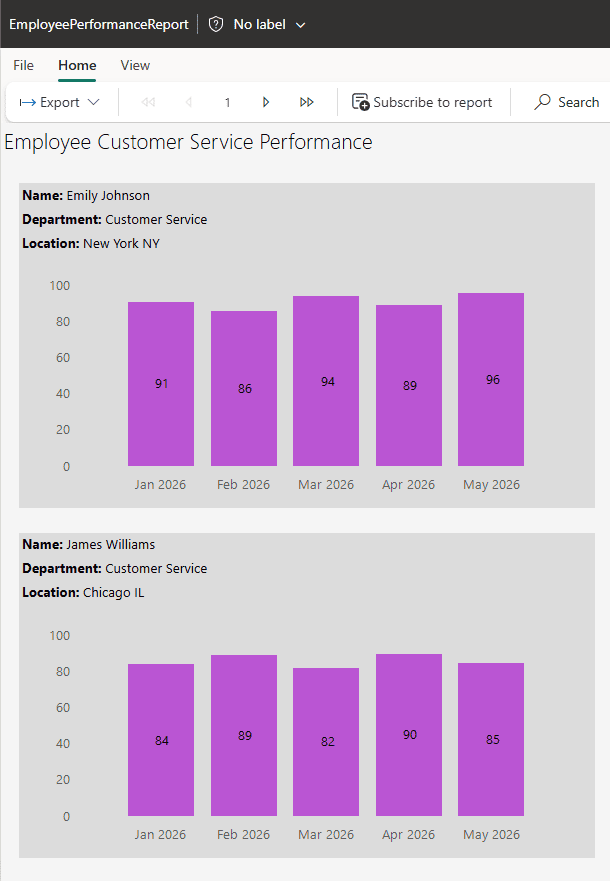
Currently, the Employees table in my Microsoft Fabric Lakehouse contains six employees. However, monthly performance scores are available for only five of them.
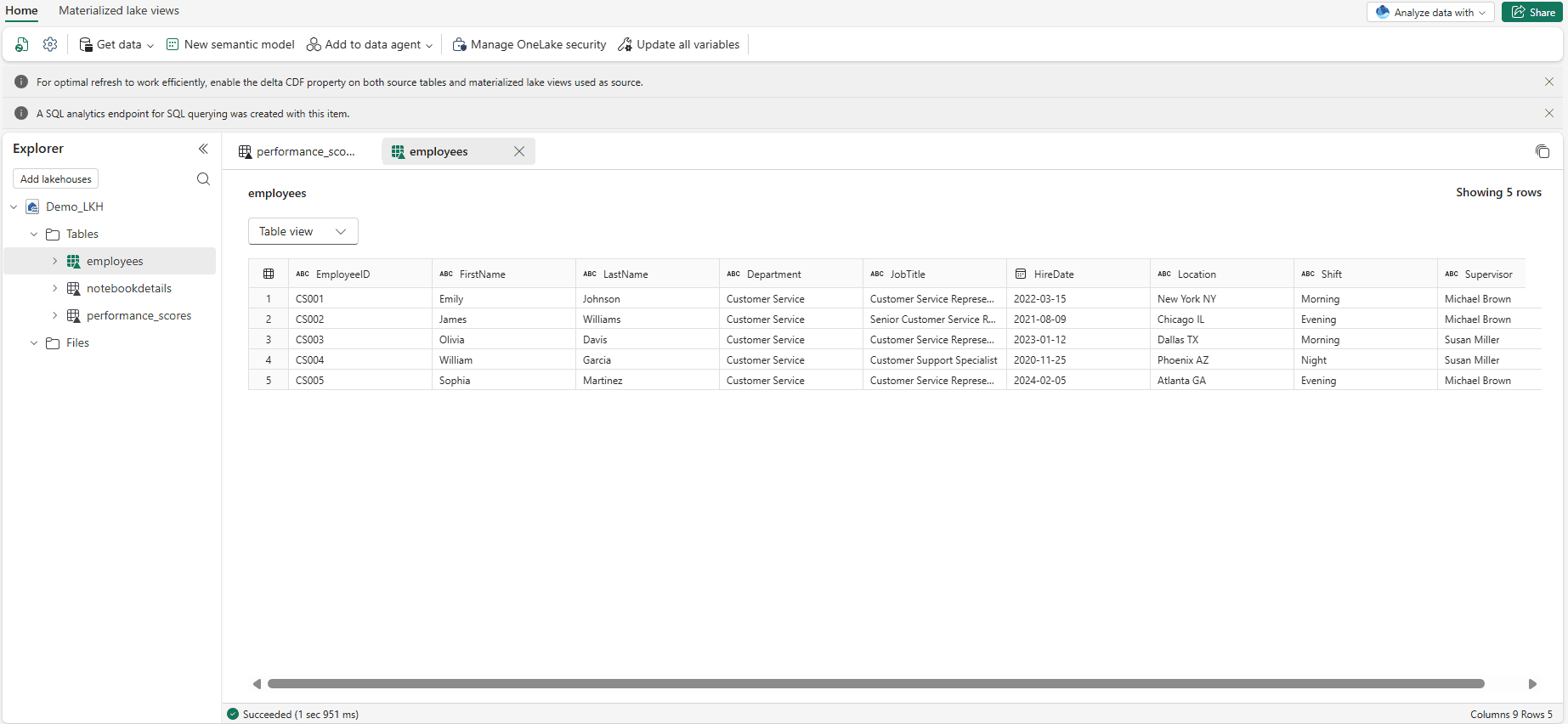
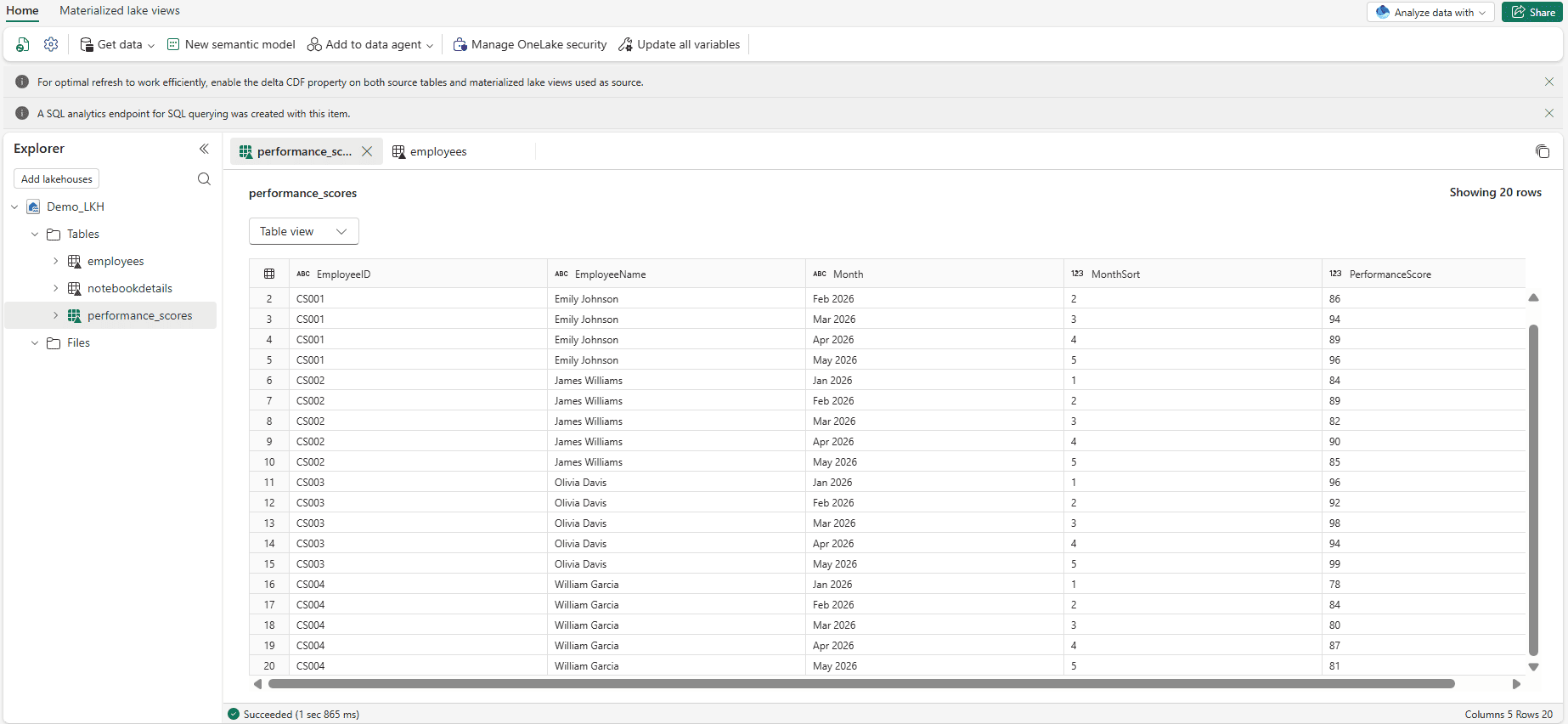
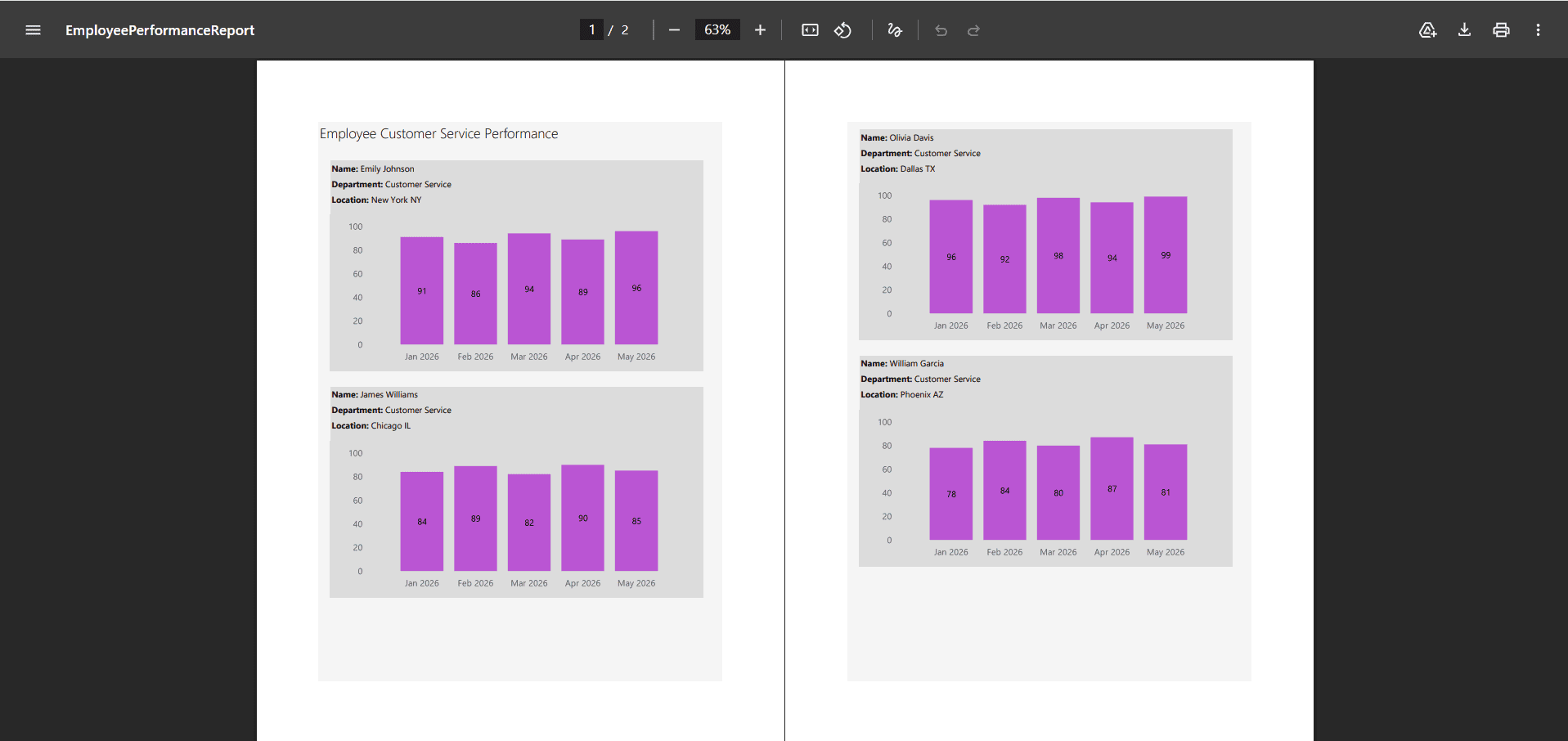
When I preview the report, it displays only those five employees along with their monthly performance trend charts. The sixth employee is missing entirely from the report.
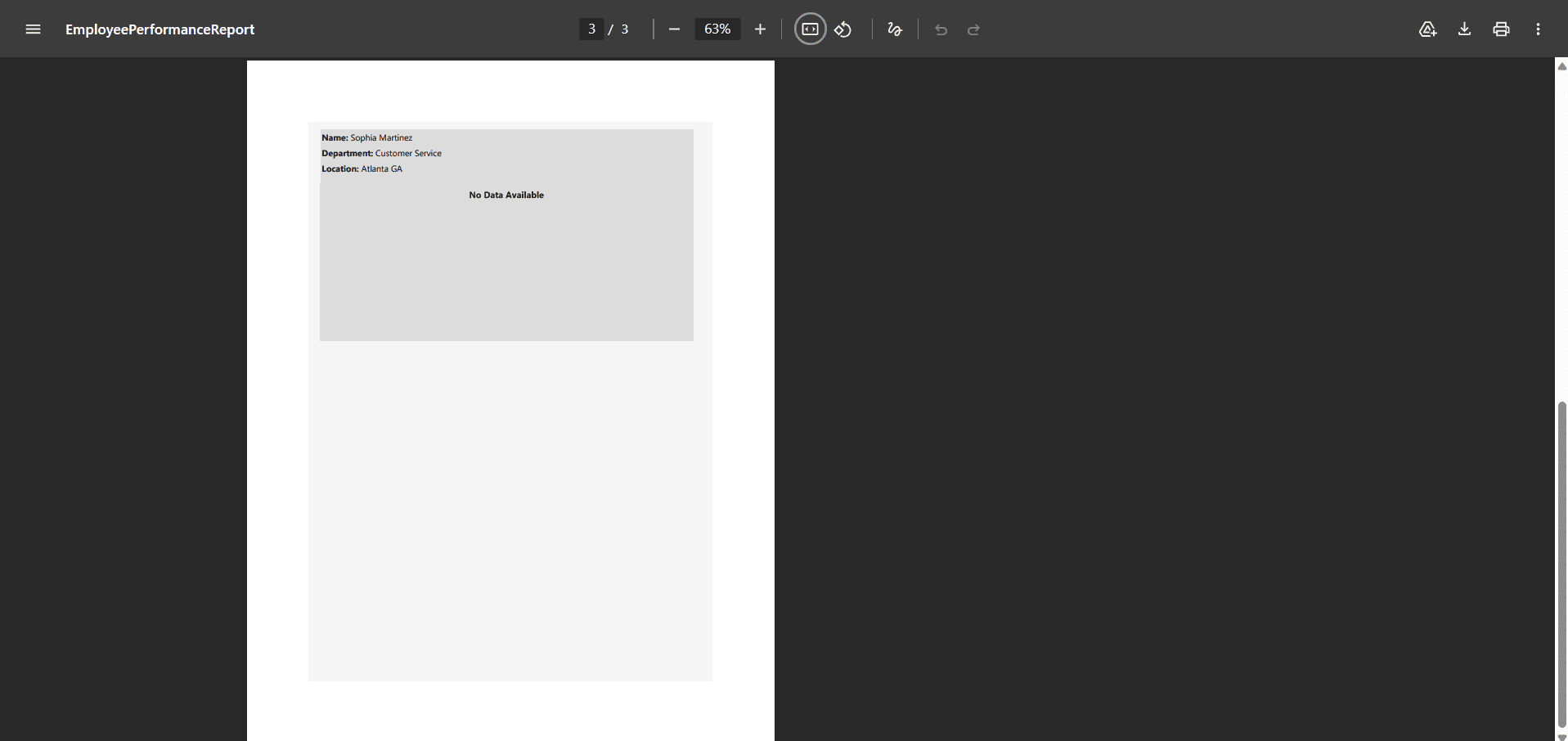
Although this employee doesn’t have any performance data for the selected period, I still expect the report to display the employee’s basic information, such as Employee ID, Name, Department, and Location. The only element that should be missing is the monthly performance trend chart, since there is no data available to plot.
Why This Issue Happens
After spending quite some time debugging the report, I finally identified the root cause of the issue.
The problem occurs when every dataset in the subreport returns zero rows. In my case, when the subreport queried the monthly performance data for employee C001, the dataset didn’t return any records. Because of that, the subreport wasn’t rendered at all.
As a result, even though the main report successfully passed the employee details to the subreport, none of that information was displayed. Instead of showing the employee information with an empty performance chart, the entire subreport was skipped.
How I Fixed It
To resolve this issue, I added an additional dataset to the subreport. This dataset contains a simple query that always returns a single row, ensuring that the subreport has data available during rendering.
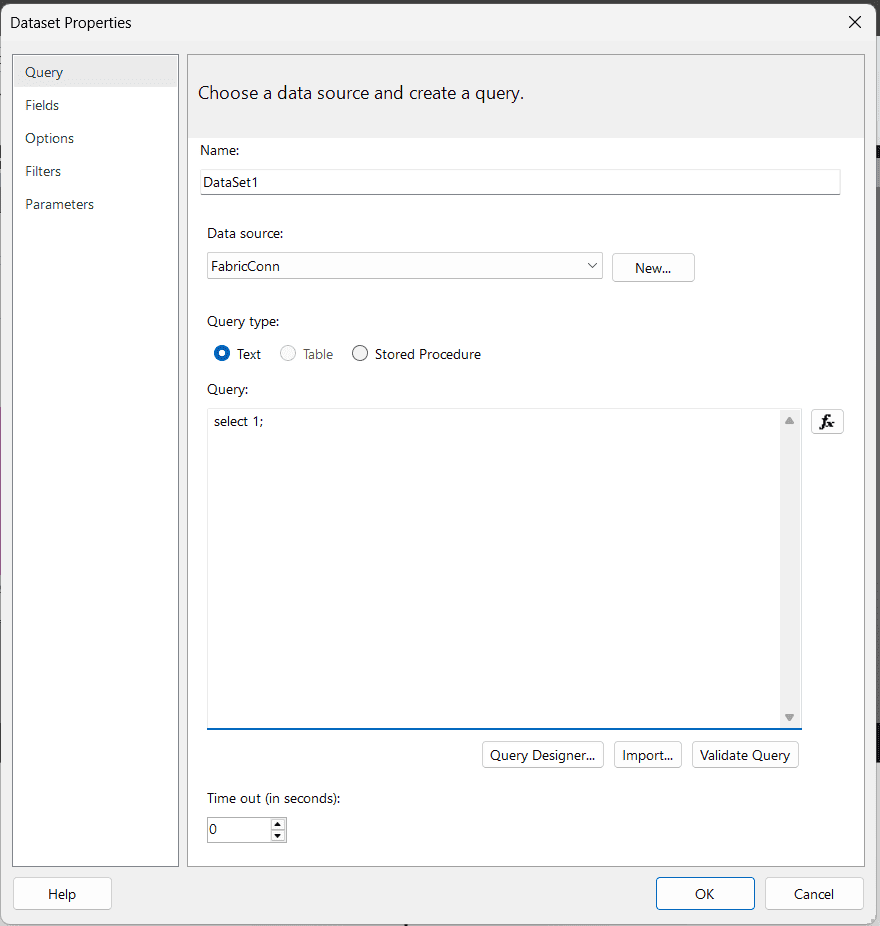
After saving the changes and running the report again, the missing employee was displayed correctly. The employee information now appears as expected, while the monthly performance trend chart remains empty because no performance data exists for that employee.
This approach allows the subreport to render successfully even when the actual business datasets return zero rows.
How This Applies to SSRS
It’s worth noting that this behavior is not limited to Power BI Report Builder alone. The same scenario can occur in SQL Server Reporting Services (SSRS) as well. Since Power BI paginated reports are built on the same underlying reporting engine as SSRS, subreports in SSRS behave in a very similar way when datasets return no rows. If a subreport has no data across all its datasets, it may not render at all in the main report, even if parameters are correctly passed. This means the same approach used here, ensuring the subreport always has at least one row to trigger rendering, can also be applied in traditional SSRS environments.
Key Takeaways
This scenario highlights a subtle but important behavior in Power BI paginated reports when working with subreports and multiple datasets. Even when the main report and parameters are correctly configured, a subreport may not render if all its datasets return no rows. This can lead to missing information in the final output without any obvious error. Understanding this behavior helps in building more reliable reports and ensures that important context, such as employee details, is always displayed even when transactional data is unavailable.
The same concept is also useful when designing reports in SSRS, since both tools share a similar rendering engine.
If you like this article, also read about another Power BI Paginated reports PDF rendering issue.