
As Power BI projects grow, it’s common to end up with dozens or even hundreds of DAX measures spread across multiple reports. Whether you’re documenting your work, reviewing business logic, or reusing existing measures in another project, having all your measures available in one place can save significant amount of time.
One of the challenges with Power BI is that reviewing DAX formulas often requires opening the report and navigating through the model to find each measure individually. This can be slow and inconvenient, especially when you only need to reference the DAX expressions or share them with other team members.
Exporting all measures from a Power BI report to an Excel file is a simple but powerful way to improve documentation, collaboration, and version management. It allows you to:
- Create technical documentation for your Power BI reports.
- Share DAX measure logic with developers, analysts, or business users.
- Keep a backup of all measures for version control or auditing.
- Reuse existing measures when building new reports.
- Quickly search and review DAX formulas without opening the PBIX file.
- Compare measure definitions between different report versions.
In this tutorial, I’ll show you a quick and easy method to export all Power BI measures, along with their DAX expressions, into an Excel file. By the end of this guide, you’ll have a structured list of every measure in your report that you can use for documentation, troubleshooting, knowledge sharing, or future development.
Let’s get started.
What You’ll Need
Download the latest version of DAX Studio from its official website, then run the installer and follow the on-screen instructions to complete the installation.
Steps to Export Power BI Measures to Excel
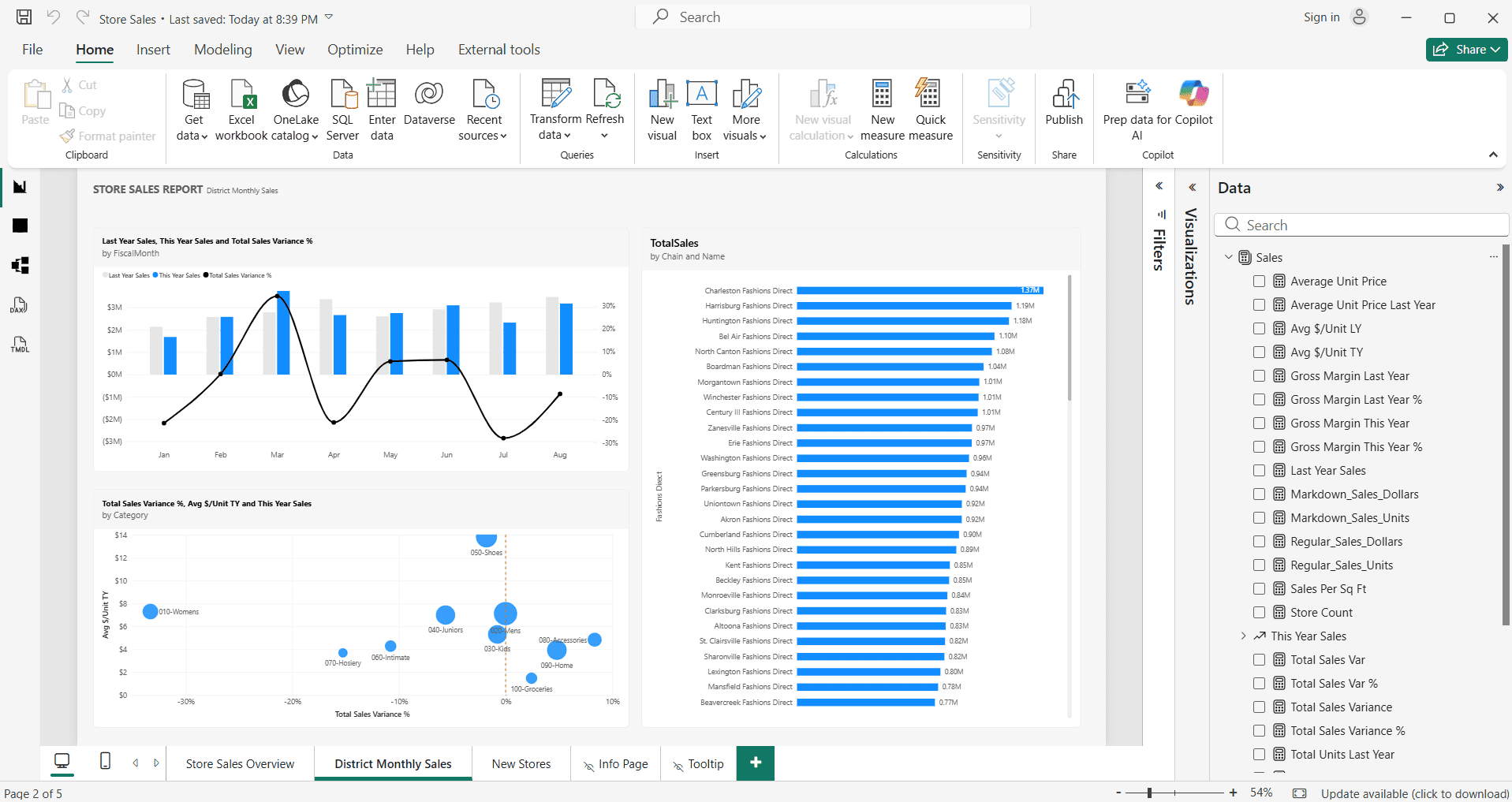
Open the Power BI report that contains the measures you want to export. For this tutorial, I’ll use Microsoft’s Store Sales sample Power BI report to demonstrate the process.
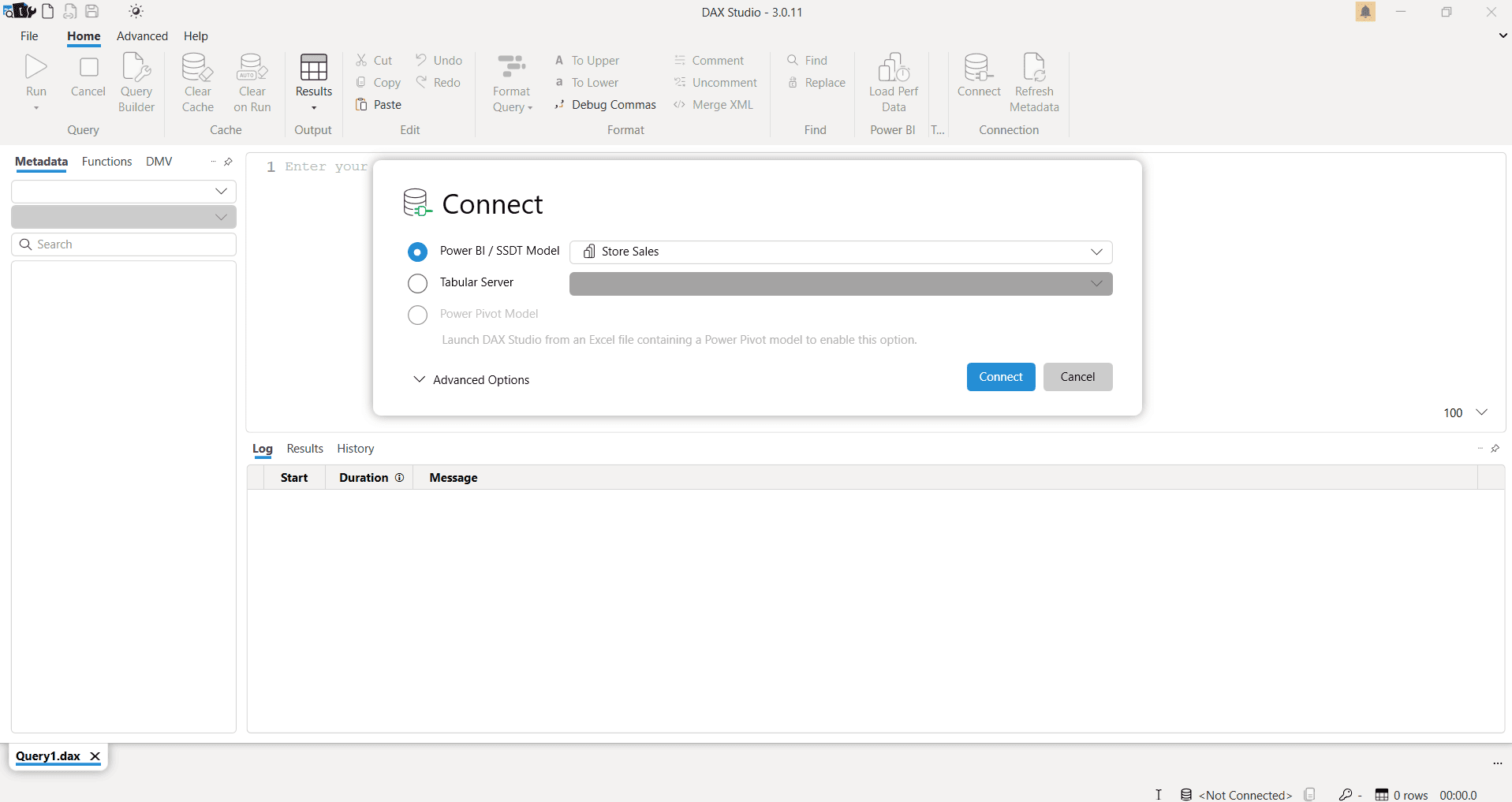
Open DAX Studio. Under the Power BI / SSDT Model option, you should see the Power BI report that is currently open in Power BI Desktop. In this example, DAX Studio automatically detects the Store Sales report. Ensure that the corresponding radio button is selected, then click Connect to establish the connection.
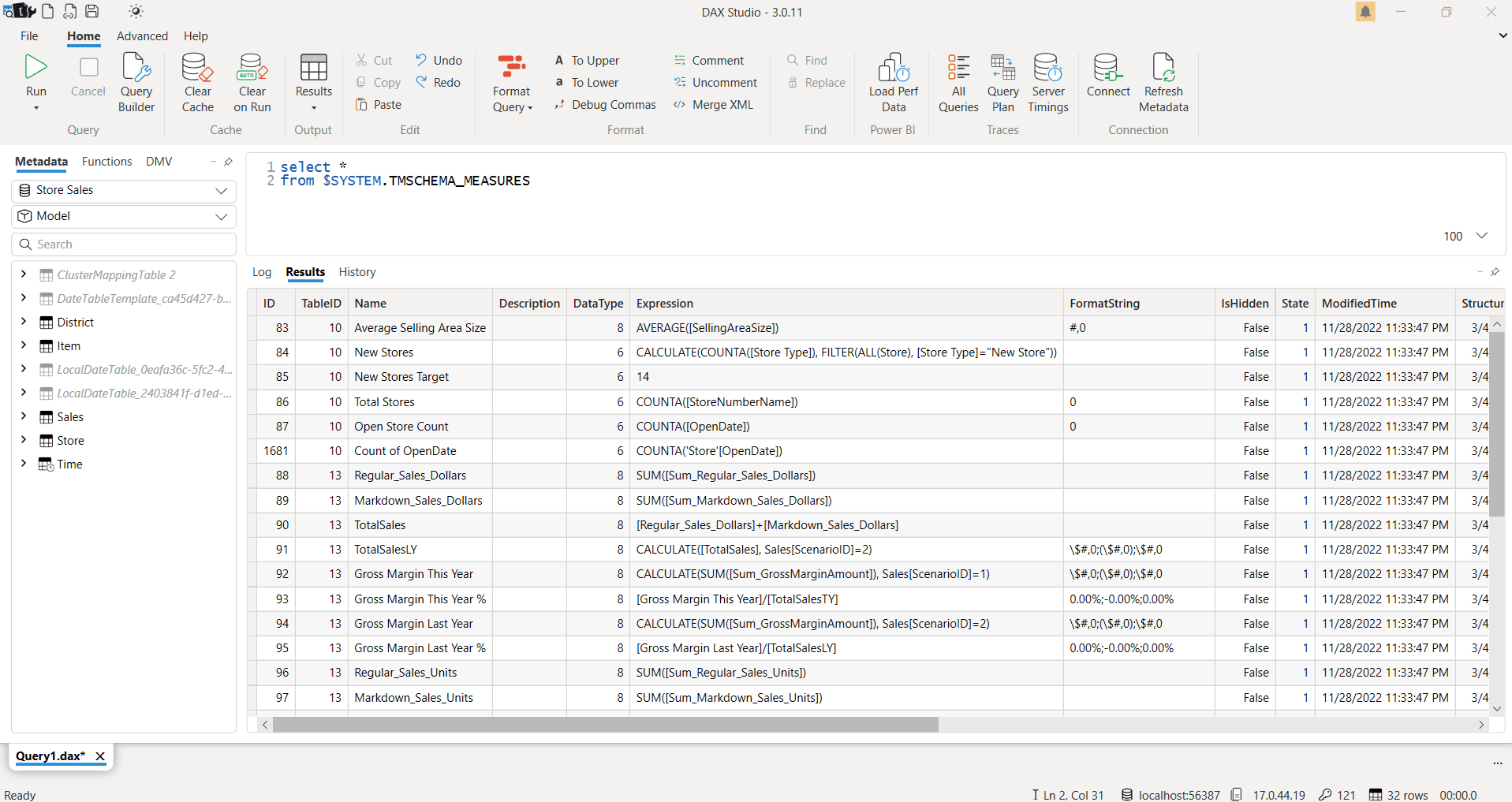
Copy and paste the following SQL query into DAX Studio, then click Run. The results pane will display a list of all the measures in the report, along with their corresponding DAX formulas.
From the Home ribbon, click the Results drop-down menu and select Static, which exports the query results in an Excel-compatible format. The same menu also provides options to export the results as CSV or JSON, depending on your requirements.
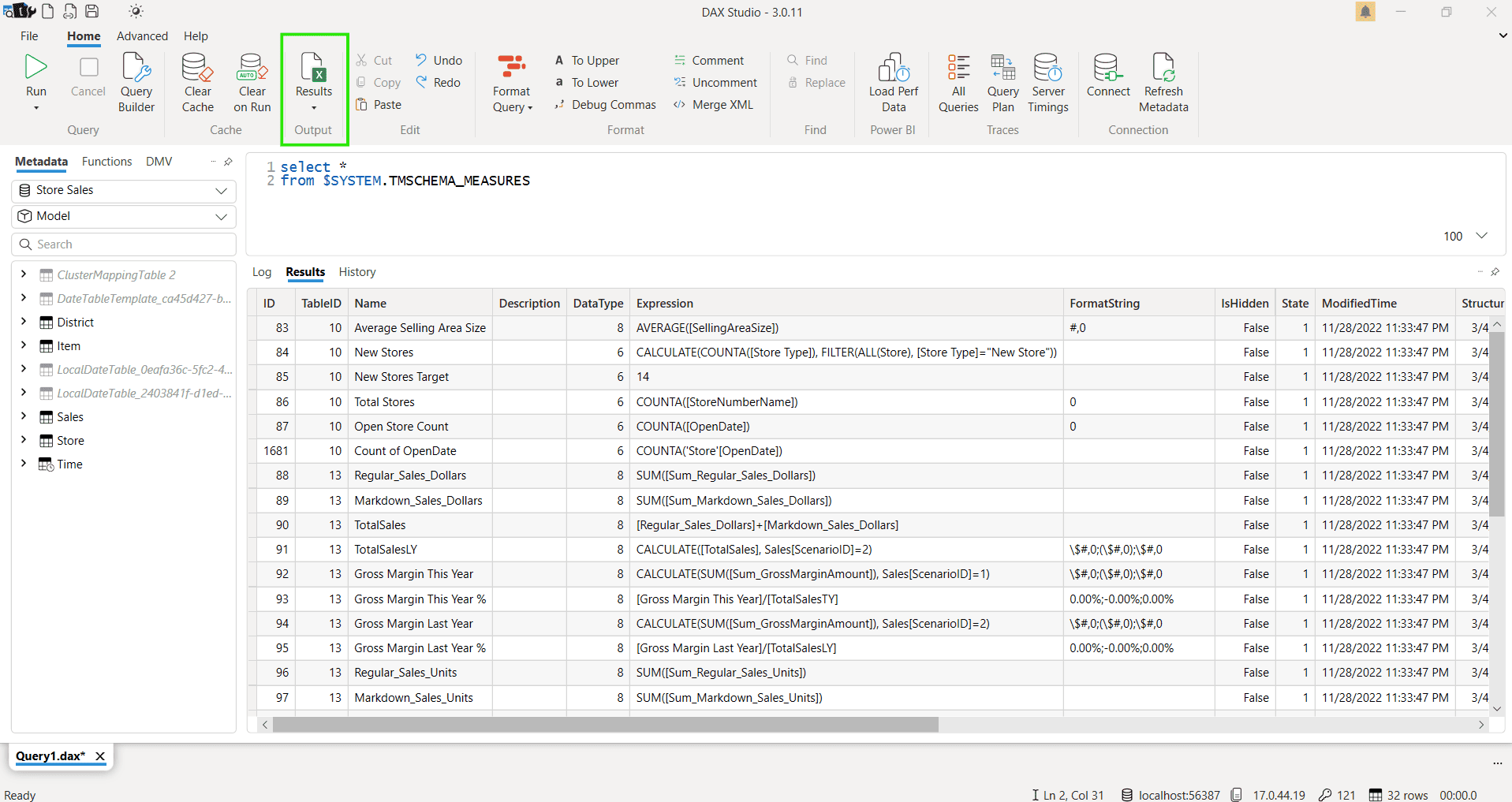
After selecting Static, run the query again. DAX Studio will prompt you to choose a location and specify a file name for the output. Once you save the file, all the measures from your Power BI report, along with their DAX formulas, will be exported to an Excel file.
Exporting measures from a Power BI report is a simple yet powerful way to improve documentation, collaboration, and reusability of your DAX logic. With DAX Studio, you can quickly extract all measures into an Excel file without manually copying each expression, saving both time and effort. This approach is especially useful for maintaining version control and sharing model logic across teams. I hope this tutorial helps you streamline your Power BI development workflow.