Connecting Power BI Desktop to a Locally Saved Excel File
You can import Microsoft Excel data in Power BI desktop application from several options:
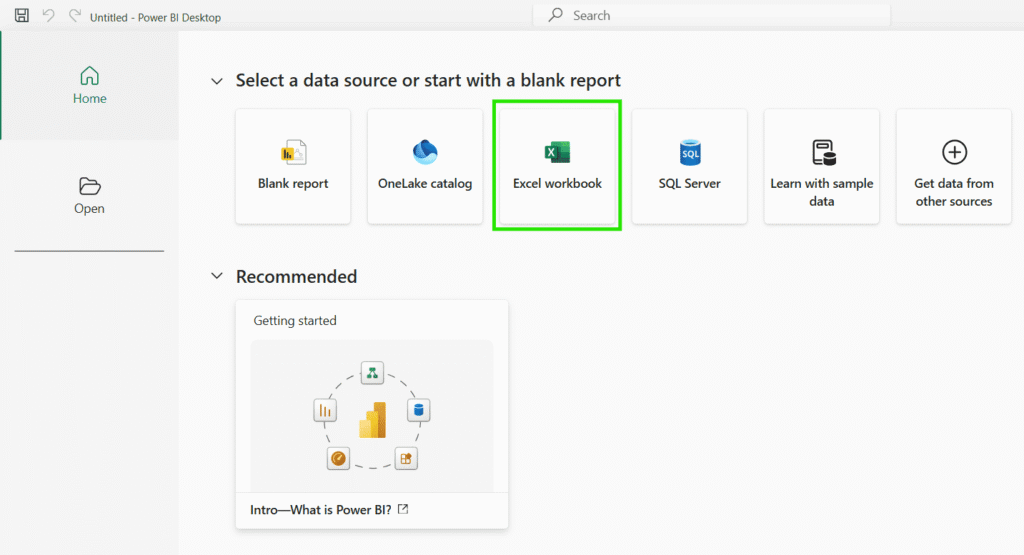
1. From Power BI Desktop home screen.
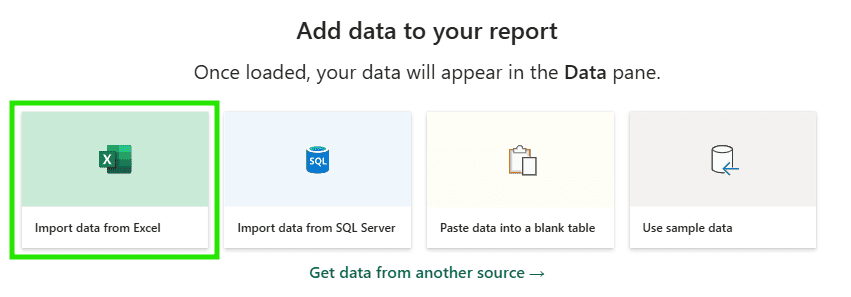
2. From canvas area in Power BI desktop application.
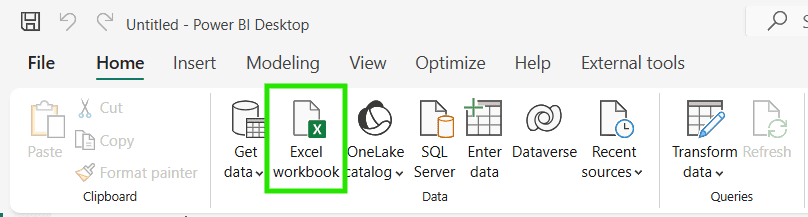
3. From Excel workbook option present in ribbon.
4. From Get data menu in Power BI Desktop ribbon.
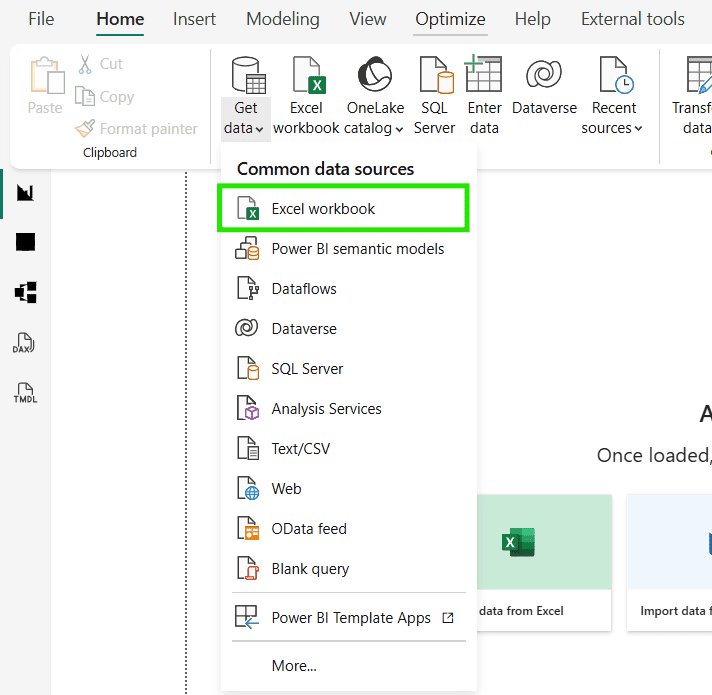
5. From New Source option if you are in Power Query Editor.
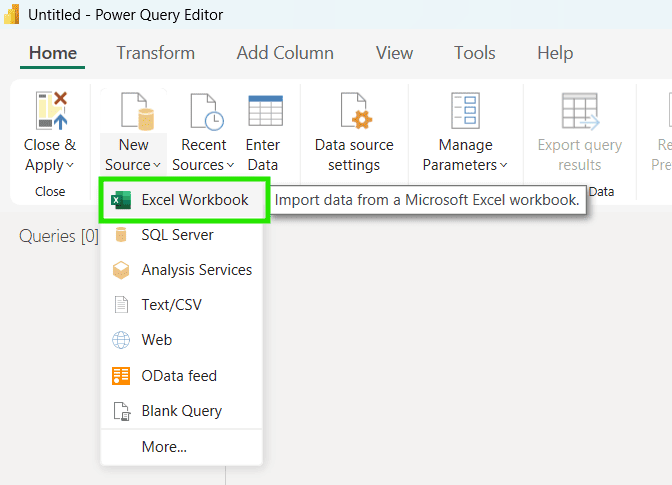
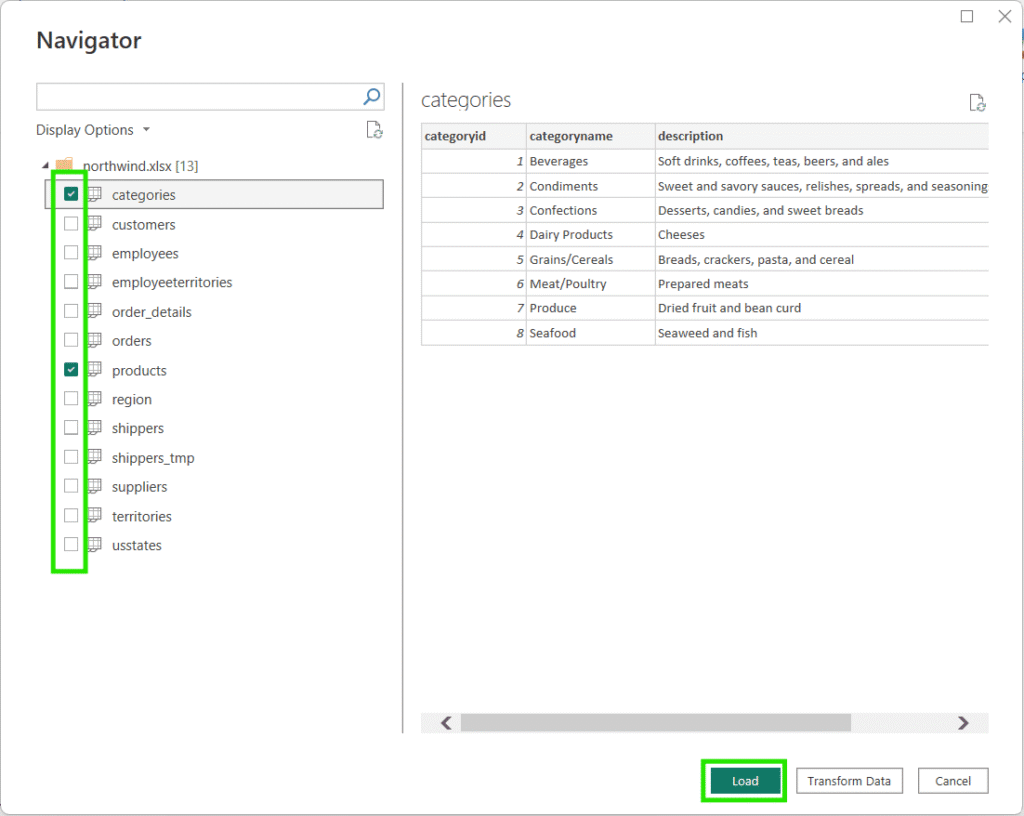
Once you select your preferred option to import Microsoft Excel workbook into Power BI, you will be prompted to choose your file. Use the File Explorer dialog to browse and select the desired Excel file. After selecting the file, the Navigator window will appear, displaying all the available sheets and tables within your workbook.
On the right side of the Navigator window, you can preview the data before importing it. Simply check the tables or sheets you want to import and click Load to bring the data into Power BI. If your data requires cleaning or modifications, select the Transform Data option to open the Power Query Editor, where you can shape and refine your data before loading it.
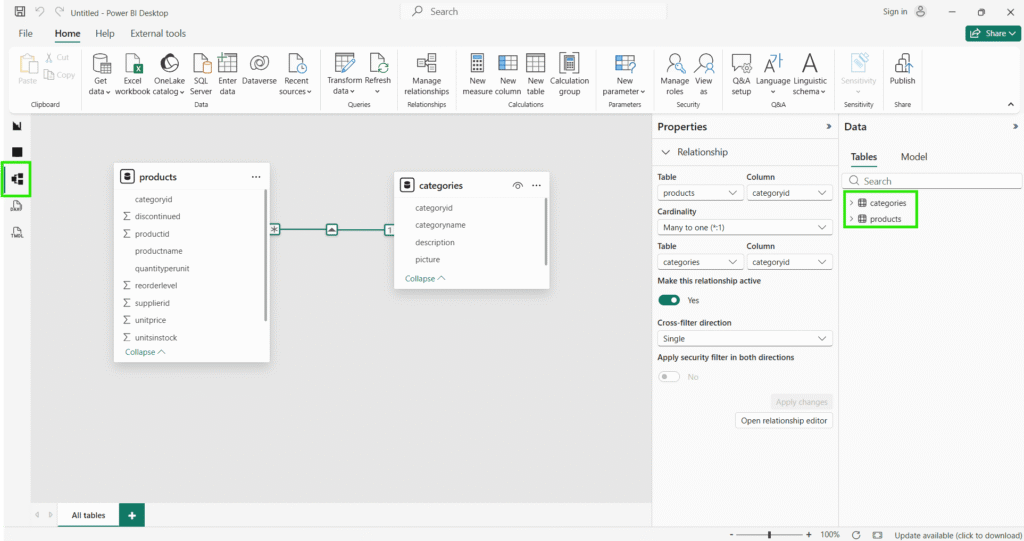
Once the data is successfully imported, navigate to the Model View by clicking the corresponding icon in the left-side navigation pane. In the right-side Data pane, you will notice that the two selected tables are now visible and ready for analysis. Switching to Model View also reveals that Power BI has automatically detected and established a relationship between the two tables based on their common attributes or matching columns, saving you the effort of manually defining table relationships.
Frequently Asked Questions about Excel Import in Power BI Desktop
01. Can Pivot Tables Be Imported into Power BI?
Yes, you can import Pivot Tables into Power BI just like any other table from your Excel file. Power BI recognizes Pivot Tables, allowing you to bring them in and use them for reporting and visualization
02. Will an Excel Sheet with Duplicate Column Names Import into Power BI?
Yes, an Excel sheet with identical column names can be imported into Power BI. During the preview as well as import Power BI will append _1, _2 etc. at the end of duplicate column names.
03. Can I load an Excel table with formulas into Power BI?
Yes, you can import tables that contain formulas into Power BI, but the formulas themselves are not carried over or converted; instead, Power BI only brings in the final calculated values produced by those formulas in Excel, meaning the data you see in Power BI is a snapshot of the results at the time of import, and if you want dynamic calculations or ongoing updates, you’ll need to recreate those formulas using Power BI’s DAX expressions or apply transformations in Power Query.
04. If an Excel formula returns an error, how is it shown in Power BI?
Yes, you can import an Excel table even if its formulas result in errors, but in Power Query those cells will appear as “Error.” You can choose to replace these error values with defaults or remove the rows entirely, and if you leave them as they are, Power BI will display them as blank values in your tables.
05. Excel with merged cells in tables – how are they treated in Power BI?
When you import an Excel table that has merged cells or columns, Power BI does not preserve the merged formatting. Instead, it treats each cell individually, which often results in blank values or misaligned headers. Merged headers in Excel can cause Power BI to misinterpret the structure of the table, so the data may not load as expected. The best practice is to unmerge cells in Excel before importing, ensuring that each column has a unique and consistent header.
06. Refresh fails with error: Failed to save modifications to the server. Error returned: OLE DB or ODBC: [DataSource.NotFound] File or Folder: Could not find file
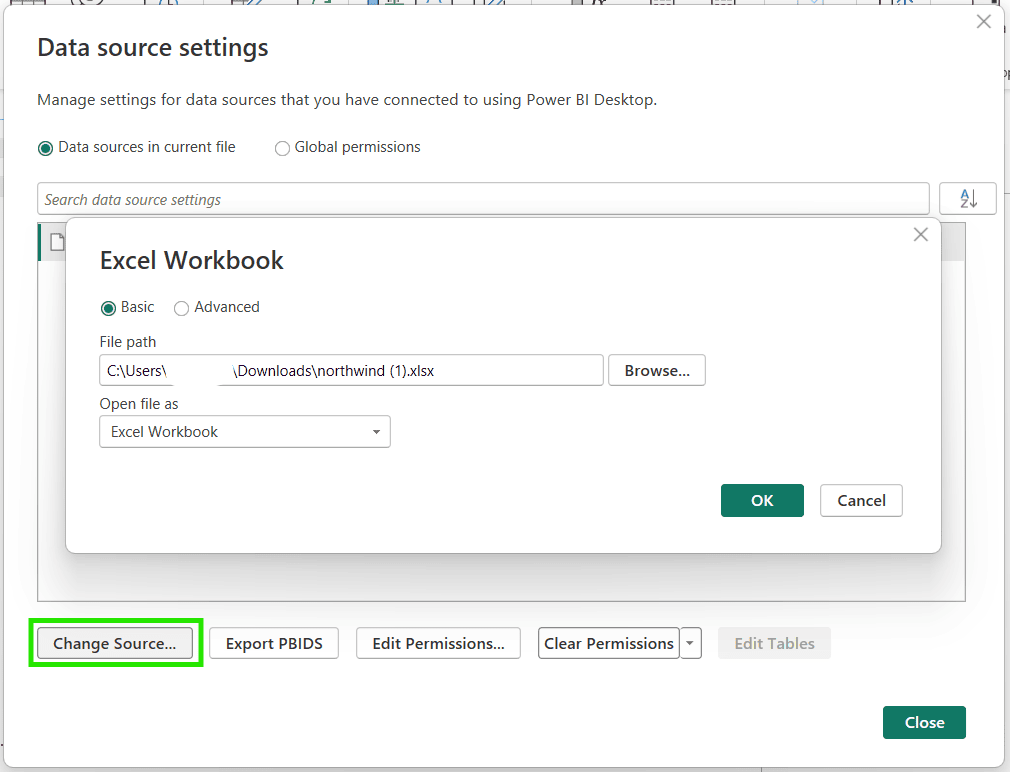
This indicates that the Excel file used for import has either been renamed or moved to a different location. If you know the file’s new name or location, follow these steps.
In Home tab, click down arrow near Transform data icon. Select Data source settings. The full path of Microsoft Excel file used to import data will be listed there. While it is selected, click Change Source button. Browse new file and click Ok.
07. Load vs Transform: which option should you use during import?
In Power BI, Load is used when your data is already clean and ready for analysis, allowing you to bring it directly into the model, while Transform opens Power Query so you can clean, filter, and prepare the data before loading. Choose Load for quick imports and use Transform when you need to fix errors, adjust columns, or shape the dataset before using in visuals.
08. What’s the process for merging data from different Excel sheets in Power BI?
Place your excel files in one folder. All of your excel files should have same columns and structure. From Power BI Desktop’s Home ribbon click on Get data and go to more.. option. Select Folder option from list and click connect button.
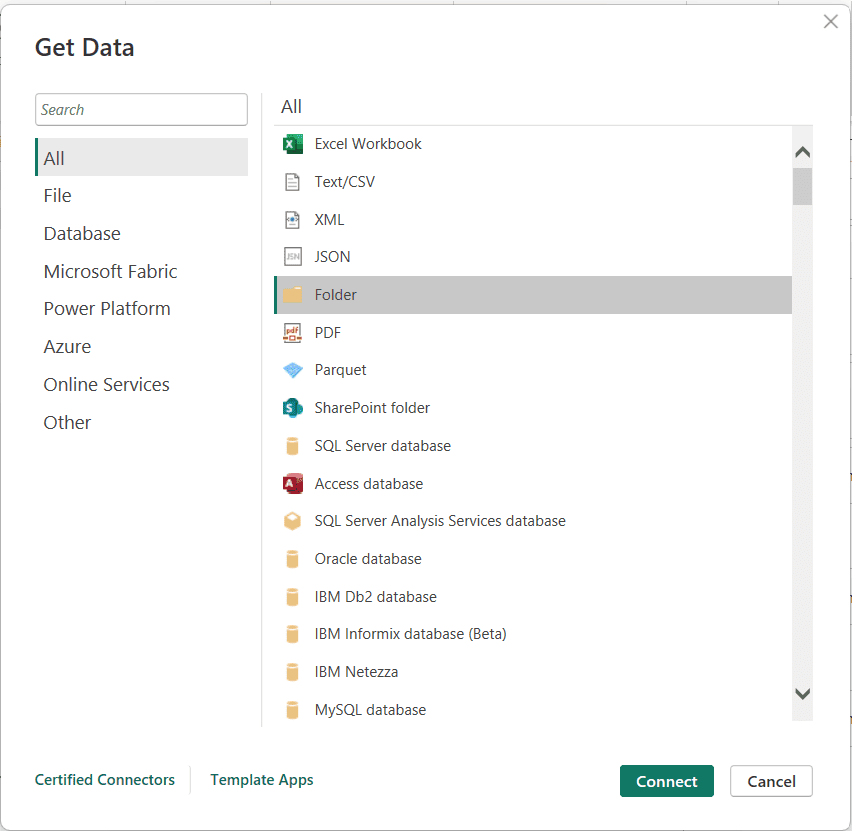
Paste the path of your folder containing excel files or browse to select one, then click Ok.

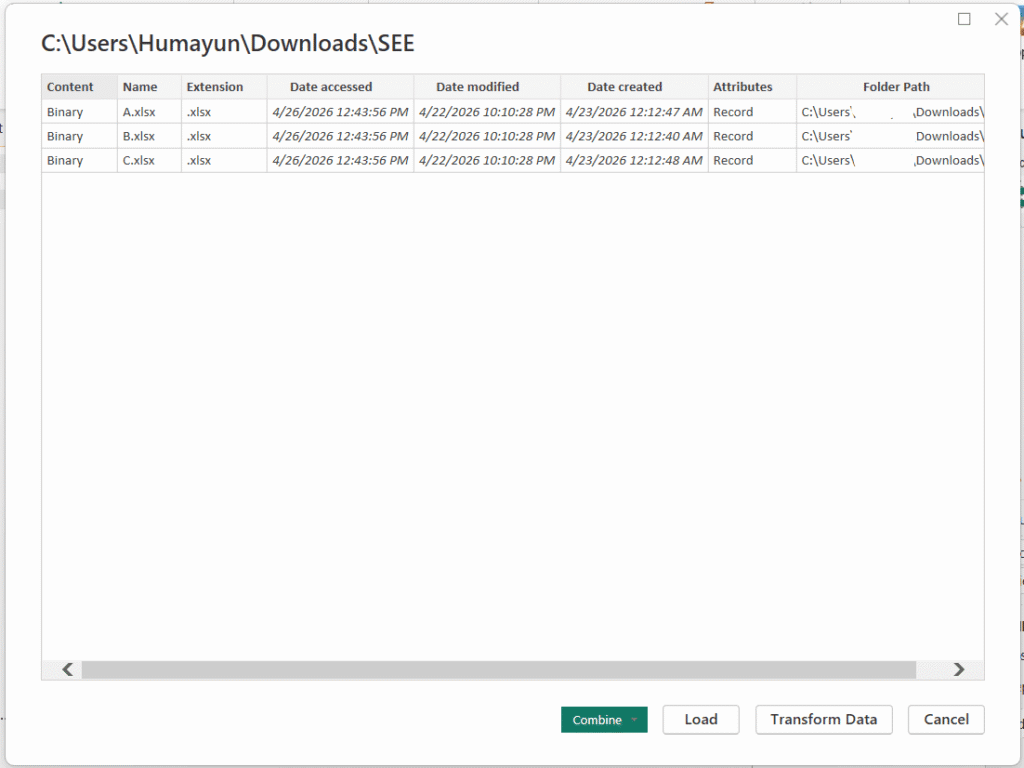
In a new pop up window you will see all the files present in your Folder. Click Combine button.
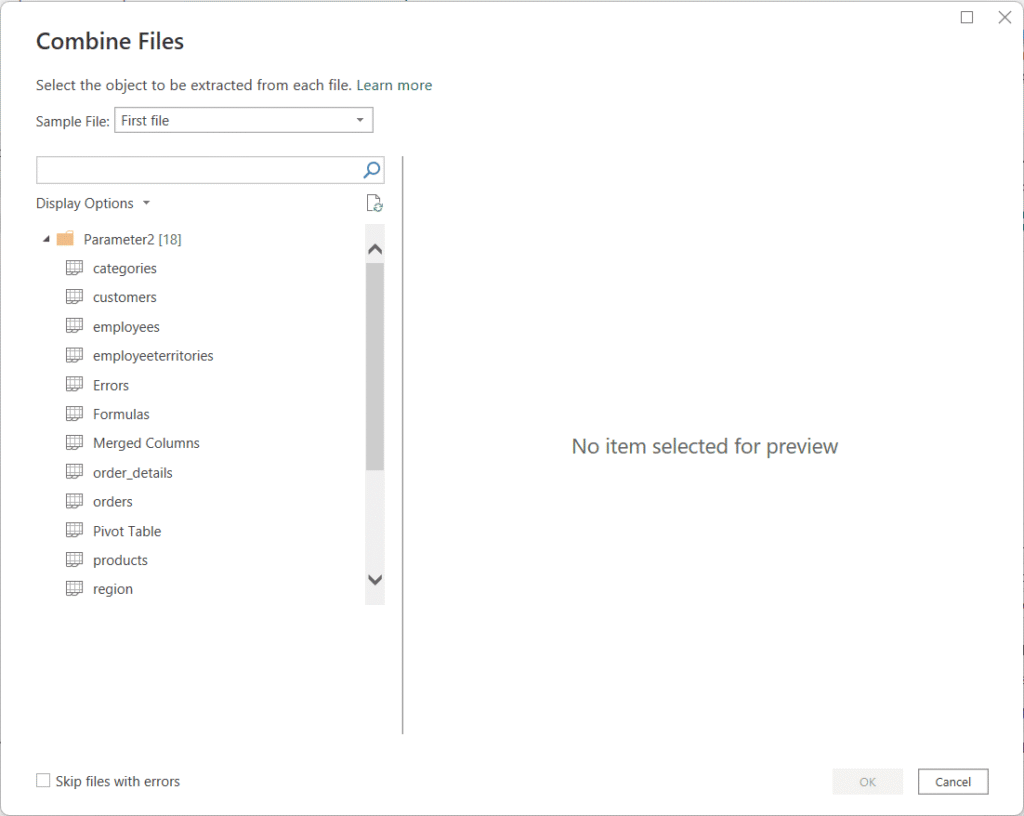
In Sample File option by default first file is selected and tables present in this MS Excel file are list. If you want, you can change it to file of your choice. Select the table for which you want to combine data from multiple excel files and click Ok.
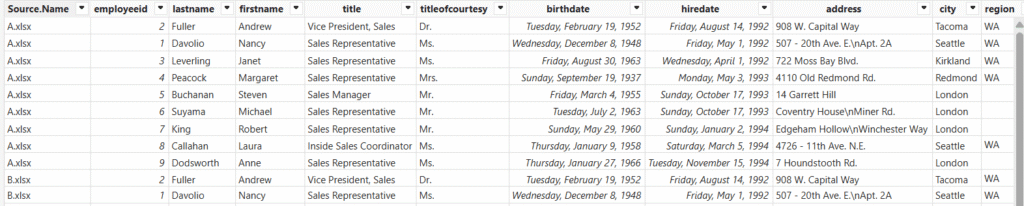
A new table will be added in your Power BI model. It will have same name as your Folder. It will have a column name Source.Name containing the Excel file name to which each data row belongs.
09. My excel has a column of icons or images. Will they be supported in Power BI?
Icons or images won’t be imported directly from Microsoft Excel into Microsoft Power BI Desktop. Instead, create a column with image URLs in your dataset and set its Data Category to “Image URL” in Power BI Desktop. When used in supported visuals like tables, matrices, or cards, the images will render correctly.
10. If I import my Microsoft Excel file into Microsoft Power BI, will my original formatting be preserved?
No, when you import data from Microsoft Excel into Power BI, the original formatting (such as colors, fonts, cell styles, and conditional formatting) is not preserved. Power BI focuses on the underlying data, not the visual layout of the Excel file. For example if you saved your currency column in a specific format (currency symbol, no decimal points), Power BI will import only the decimal value. You will need to recreate any formatting within Power BI using its own formatting options.
11. Can I imported a password protected MS Excel Workbook in Power BI?
If your Excel file is password protected and also encrypted then during the import you will get error message: We were unable to load this Excel file because we couldn’t understand its format. File contains corrupted data.

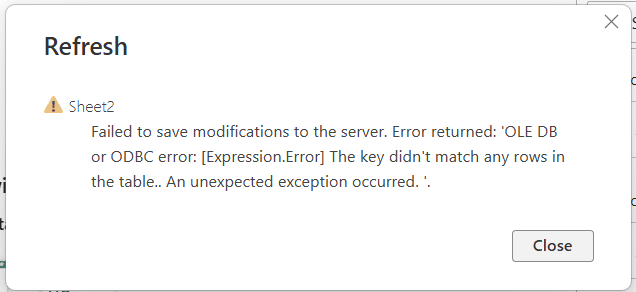
12. Power BI Refresh Error with MS Excel: The Key did not match any rows in the table. How to resolve it?
If you update the Microsoft Excel file connected to your Microsoft Power BI report, especially by renaming a table or worksheet, you may encounter an error during refresh stating: The key didn’t match any rows in the table.
In Power Query editor you can open the query in Advance Editor. Look for the name you used before and update it. This was you can quickly fix this problem.