Microsoft offers Power BI Report Builder to create pixel perfect paginated reports. You can create tabular reports and export data to MS Excel or you can create document style reports and export to MS Word. Apart from export to MS Excel and Word you have also option to export as PDF and CSV. You can add text boxes, icons, images, charts to your report and easily control their visibility. If you are using images in SSRS or Power BI paginated report one issue you can encounter is that images in PDF export are rendering incorrectly when opened in Adobe Acrobat Reader as compared to Google Chrome or Microsoft Edge. In this tutorial we will go over an example of the issue (whether you are using MS Power BI Report Builder or SQL Server Reporting Services) and its resolution.
Issue Details
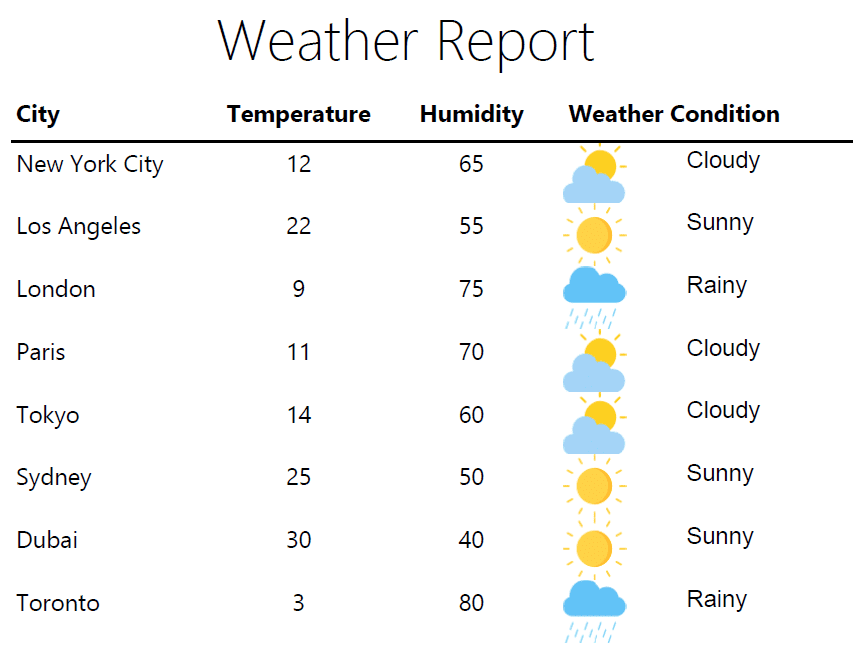
To demonstrate the issue, I have created a simple weather report in Power BI report builder. For each city it shows temperature, humidity and weather condition along with an icon. For icons we have used PNG images.
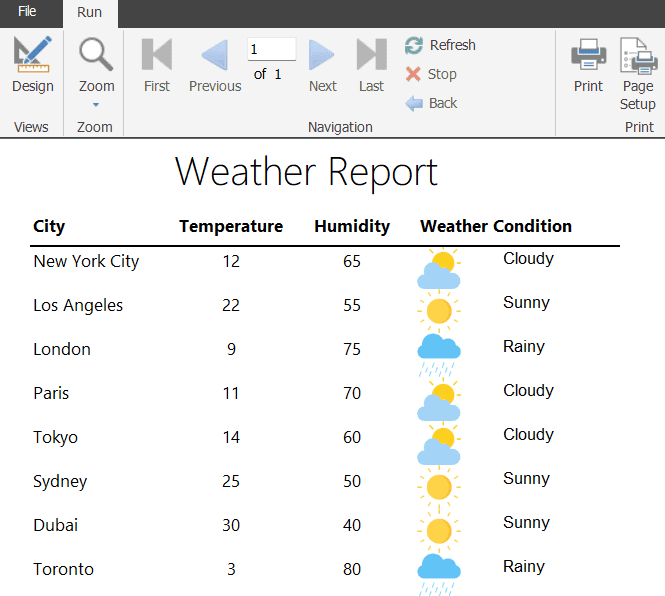
When I export this report as PDF and open in Adobe Acrobat Reader, we can see that the images has some issues. There are some black lines here and there, they are not smooth and look little pixelated.
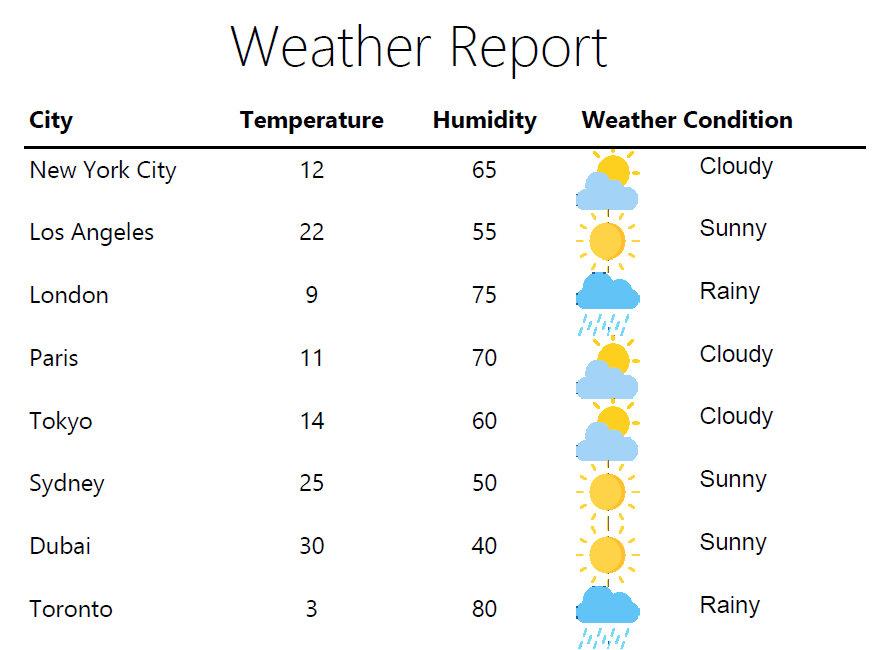
Now the same PDF when viewed in Google Chrome and Microsoft Edge are looking correct.
This issue happens with PNG images and how Adobe Acrobat Reader renders them. PNG images have a transparent background. In order to resolve this issue either you can use images that already have a background or you can take you images and add background.
One might think that if it is working in Microsoft Edge or Google Chrome, why we need to do anything for it. Well it is possible that your team is either using Adobe Acrobat Reader as default PDF viewer or you shared the report with someone else outside your team who is using this Adobe Acrobat Reader. So it will be a good idea to fix this issue.
Issue Resolution
In order to resolve this issue we will add background to the image. First open the image in Microsoft Paint and press Ctrl + A and Ctrl + C. This will copy the image with transparent background.
Open a new blank Microsoft Paint window. Go to File > Image Properties and set image size according to original image. You can find width and height of image either by hovering over the image file in Windows explorer or by checking the file properties.
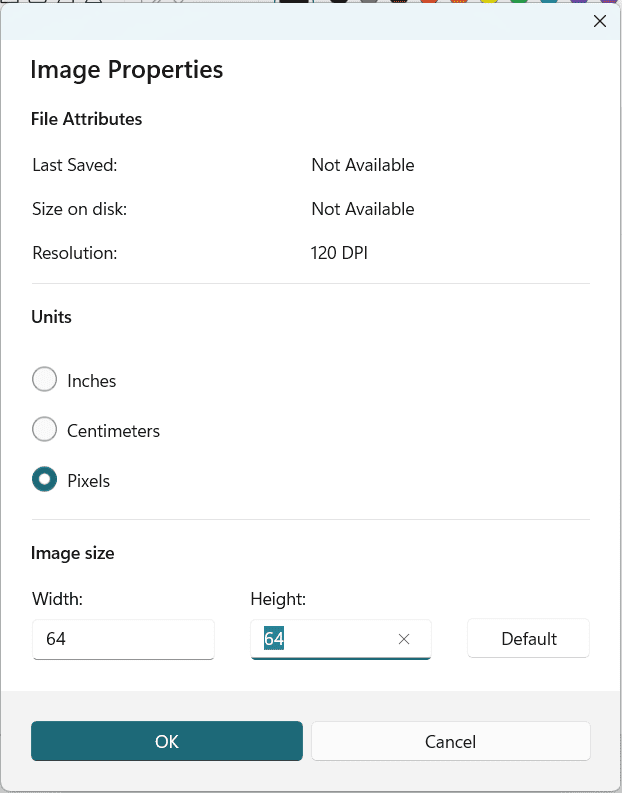
Once you have set the image size, click Ok. Incase your report page has background color, fill the MS Paint canvas with same background color. Now press Ctrl + A and Ctrl + V on blank file. This will past the original image with transparent background here. Save this new image and replace the image in report.
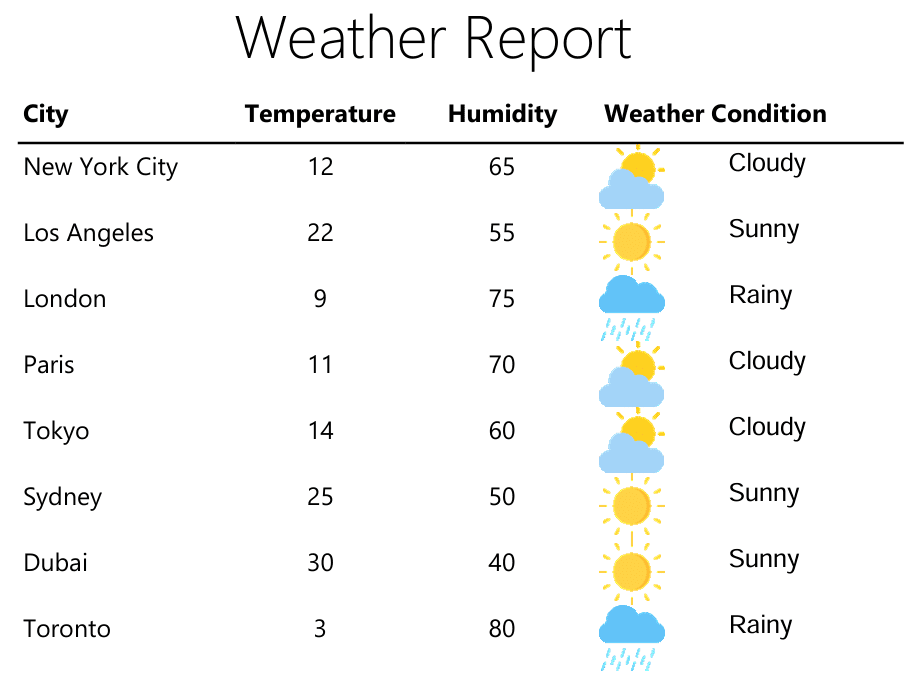
Now If we export the report and view in Adobe Acrobat Reader, it will render images properly.