Introduction
In today’s data-driven world, success depends on the ability to transform information into actionable insights. Among the top business analytics solutions available today is Microsoft Power BI. It enables organizations to visualize data, identify trends, and make informed decisions. Meanwhile, Microsoft Dynamics 365 provides a comprehensive suite of business applications that streamline operations across sales, customer service, finance, and supply chain management. Power BI’s versatility shines through its capacity to generate reports and interactive dashboards by connecting to hundreds of different data sources, including Dataverse, the underlying platform that runs Dynamics 365 applications. This allows users to visualize and analyze data rapidly and respond accordingly. The following tutorial explains how to incorporate a pre-existing Power BI report directly into your Dynamics 365 environment. The report can be based on Dataverse data or any other data source.
Tutorial
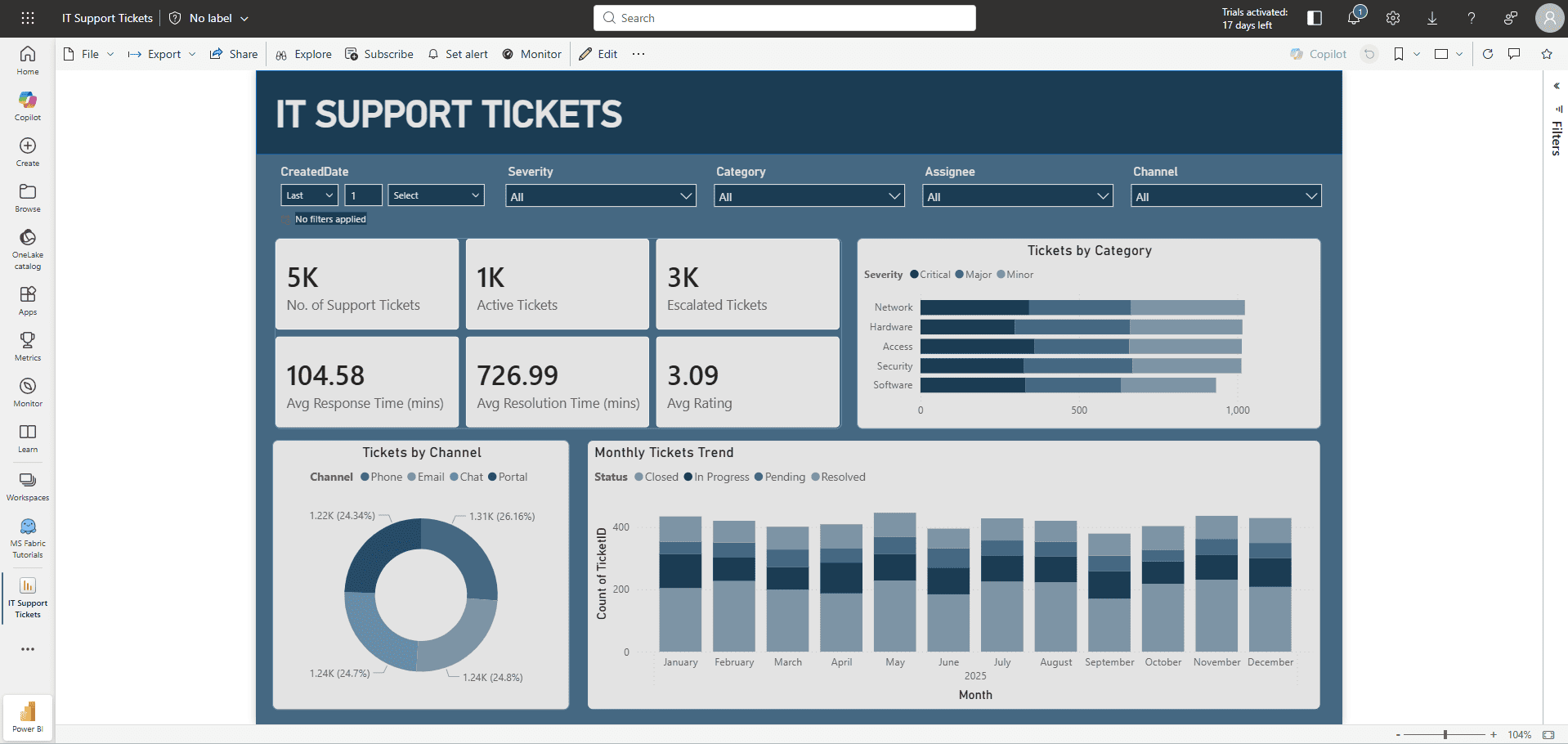
I have created an IT Support Tickets report in Power BI. It is based on Dynamics 365 Customer Service data. Report is published in a workspace in Power BI Service.
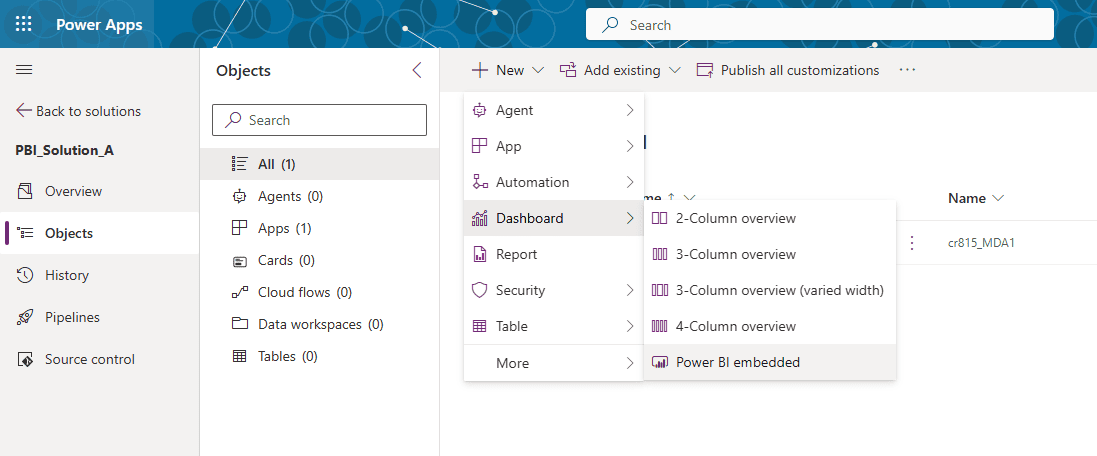
Open your solution in Power Portal. Click on New -> Dashboard -> Power BI embedded.
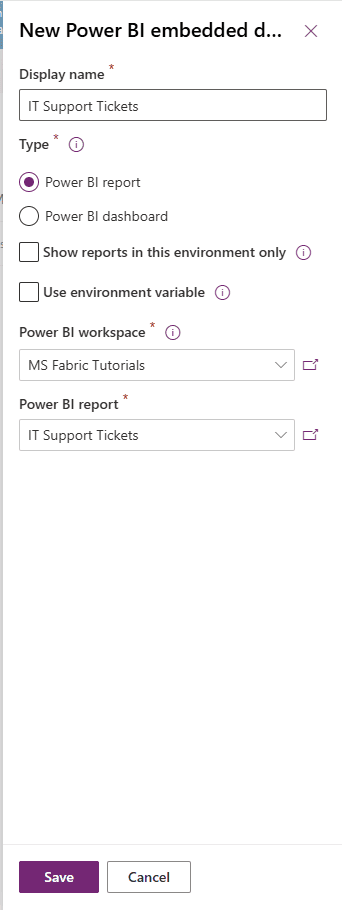
In the window that appears, select the Type which in our case is Power BI report. Then select the Power BI workspace and Power BI report from list. Once done click Save. Now our Power BI report is part of the solution.
Next we need to add this report to our Model Driven App. This can be a Dynamics 365 business application like Sales Hub or custom model driven application.
Open the Model Driven App in Edit mode. Click on New and add page of type Dashboard.
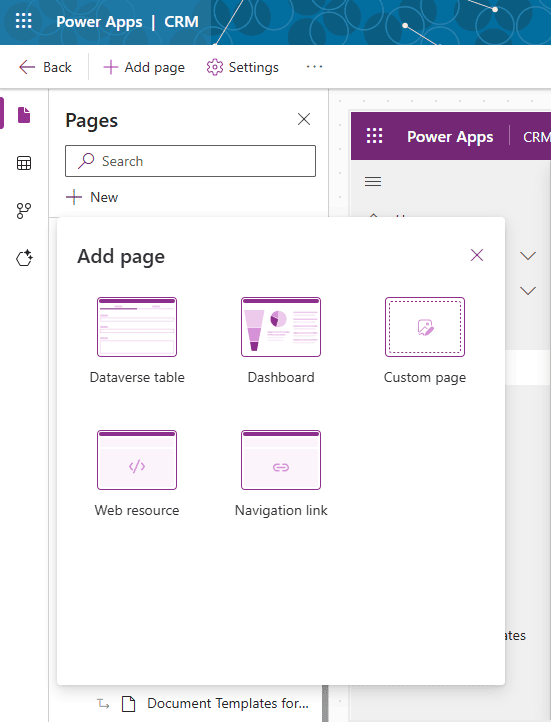
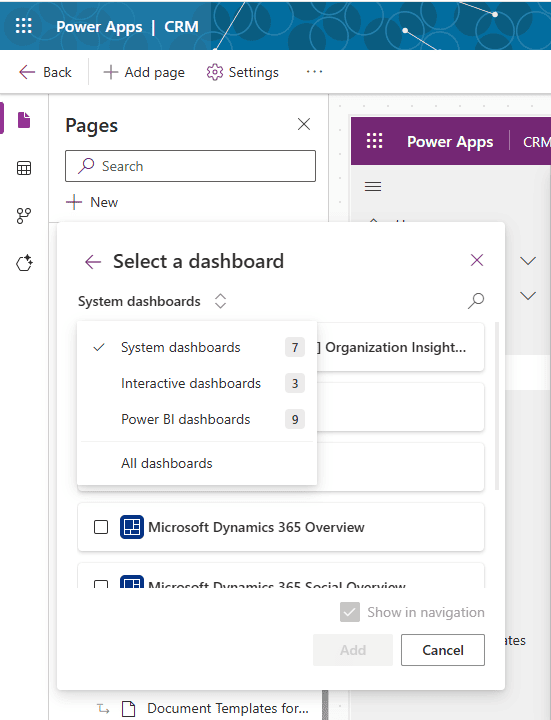
By default System dashboards will be selected, so you would not see the Power BI report that you had added. Click on up and down arrow button and select Power BI dashboards.
It will show list of all Power BI reports and dashboards added to your environment. You can search through the Power BI reports using magnifying glass icon. Select the report and make sure that option – Show in navigation is selected. Click Add button.
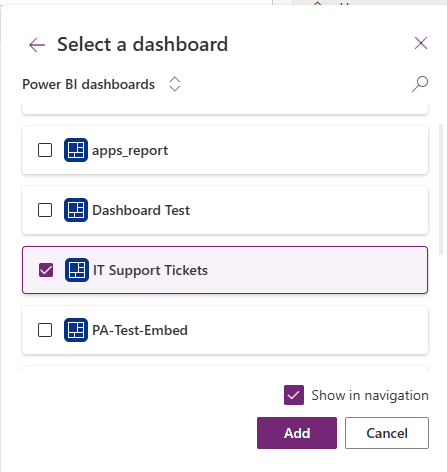
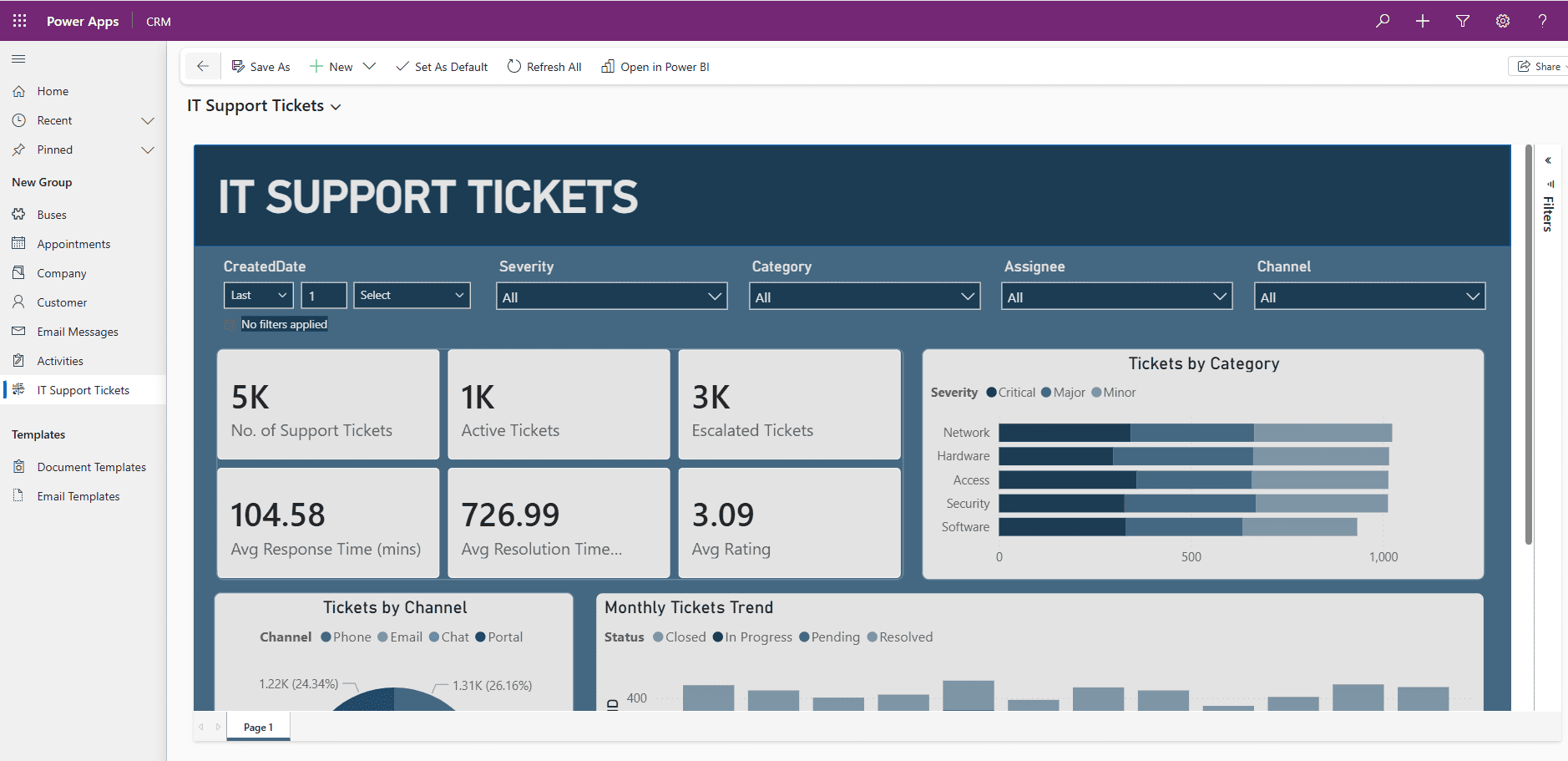
Your Power BI report will be added as a new page in left navigation menu. With appropriate access to Power BI report, user should be able to see contents of Power BI rendered in Model Driven App.